

What it does. Your business and credit customers get their own page on their phone.
Portals › Client Portal › Customers & access. The Client Portal is in its own menu, Portals, together with the Supplier Portal. The menu shows only at locations with the Client Portal or Supplier Portal module.
What it does. Your business and credit customers get their own page on their phone. They sign in with their mobile number and a code, see what they owe, open and pay each bill, see their statement (PDF or Excel), accept a quotation or ask for a change, ask for the same order again, and ask you a question. Fewer "please send my statement" calls, faster payments.
Who can sign in. Only customers you invite. A number you have not invited never gets a code.
How customers sign in. With their mobile number or email and one password, or with a one-time code on their phone (it always works). In the portal's Profile › Password and email they set a password and check their email: a code goes to the email you have for them, and once typed the email signs in too. Forgot password? on the sign-in page sends one code to their WhatsApp or SMS and their checked email, the same code on both; they type either and choose a new password, and their other phones and computers are signed out. Team members of a business buyer sign in with their mobile and a code. Five wrong passwords pause the number for 30 minutes.
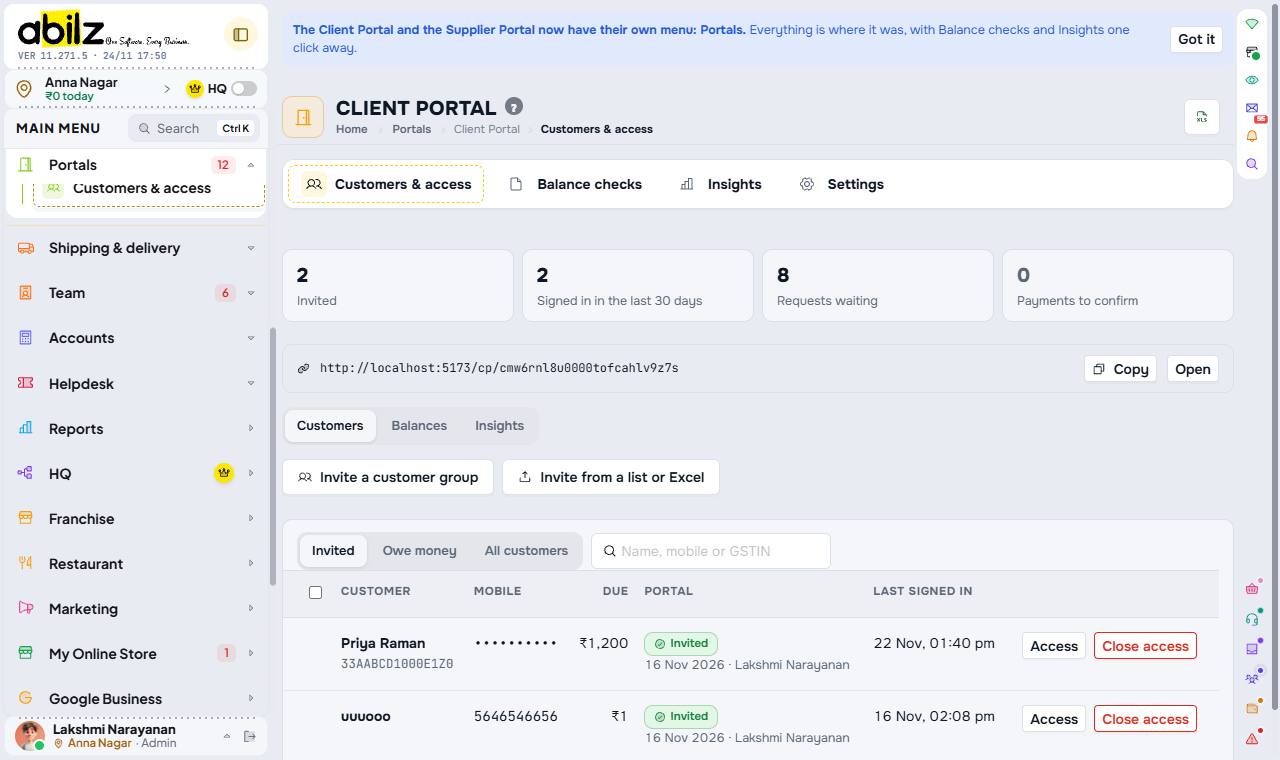
Customers & access
At the top: how many are invited, how many signed in lately, requests waiting, payments to confirm, and the portal link (Copy, Open). Three views: Customers, Balances and Insights.
- Invite customers. Choose Owe money or All customers, tick the customers, press Invite and send link. Each gets a WhatsApp (or SMS when WhatsApp is not set up) with the portal link; it is paid from your message wallet. Invite only gives access without a message: share the link yourself.
- Many at once: Invite a customer group, or Invite from a list or Excel (type the mobile numbers or read an Excel or CSV file).
- Access on an invited customer opens their window:
- Pages & buttons: this customer's own rules over their group's and everyone's (Same, On or Off for each page and button).
- Access: Pause (they cannot sign in, nothing is deleted; Resume later), Access ends on a date (good for a trial, a season or a contract), Sign out now on every phone and computer, and their team (a business customer can add up to 5 people who sign in with their own mobile; Remove one).
- Documents they sent you, and Activity: sign-ins, downloads, bills opened and requests.
- Close access signs the customer out at once.
- Balances (Portals › Client Portal › Customers & access › Balance checks): ask customers to confirm their balance on a day (31 March, end of last month or any date), then see who agreed, who did not and what they said. Ask again for one customer.
- Insights: what customers do, the most active customers, and who was invited but never signed in (Send the link again).
Requests
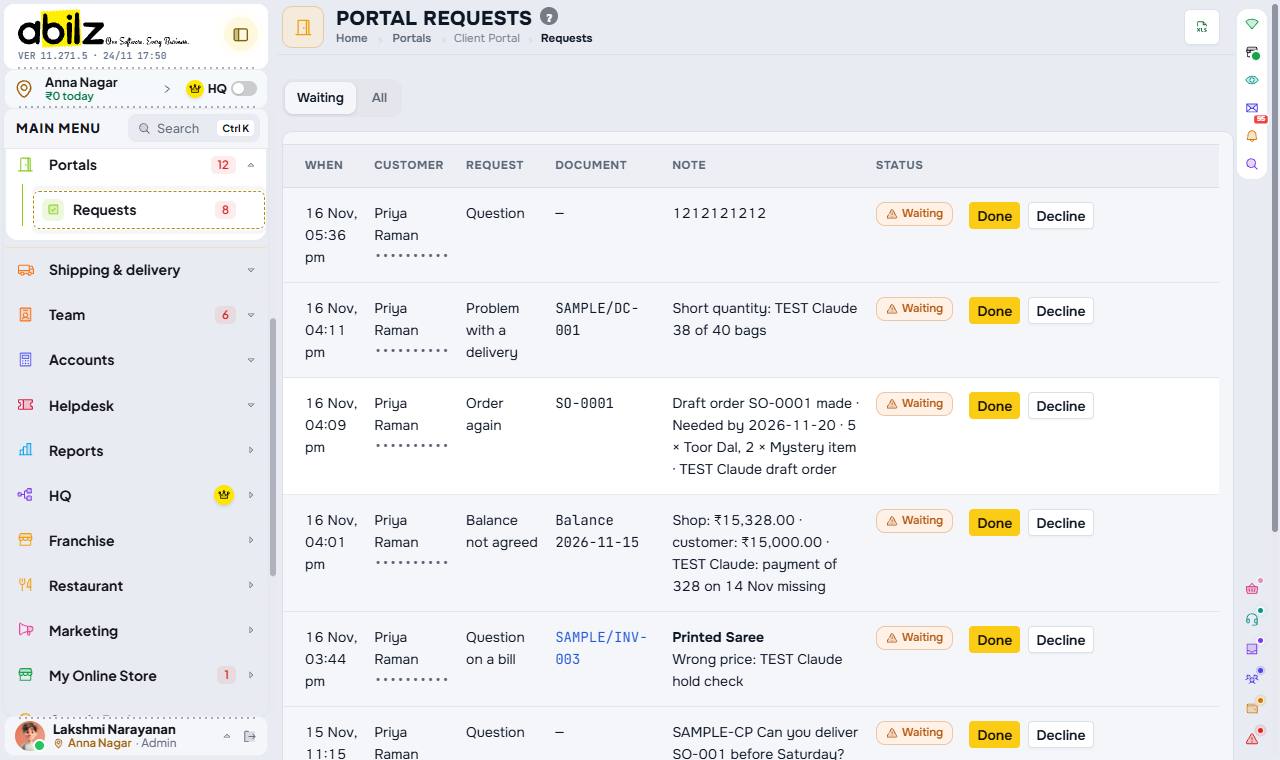
Portals › Client Portal › Requests lists what customers asked:
- Quotation accepted: the quotation is already marked Accepted. Make the sales order or invoice from it.
- Change asked: their note says what to change. Send a new quotation.
- Order again: the earlier invoice and their note. Make the order.
- Question on a bill and return asked: the lines they ticked. Make the credit note for a return.
- Higher credit limit: press Set the limit and the new limit is saved on the customer.
- Question: answer them.
Press Done or Decline, with a reply if you like; the customer sees it in their portal under My requests.
Payments to confirm (at the top of Requests): payments customers say they made (UPI, bank, cheque or cash, with a screenshot when they attach one). Press Confirm or Not found, with a note for the customer.
With the Helpdesk module each request also gets a ticket number, and the customer follows it on their portal.
Settings
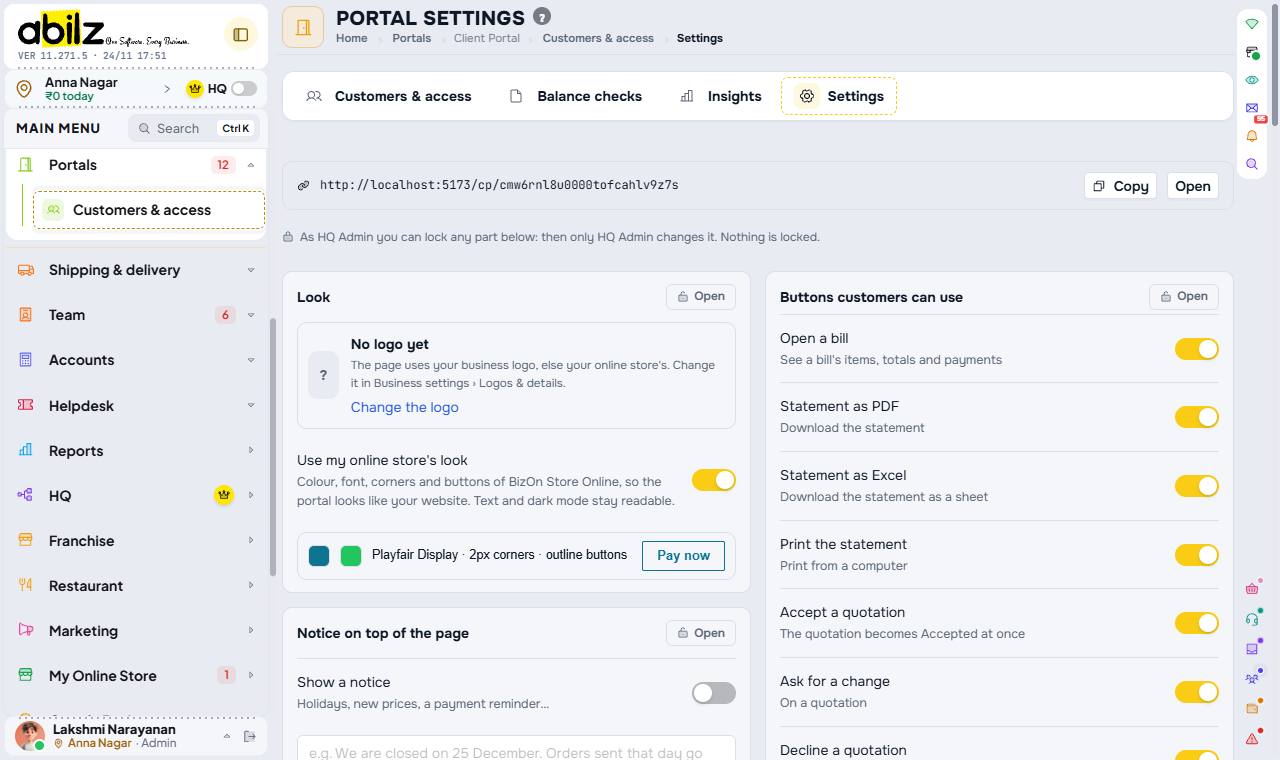
Portals › Client Portal › Customers & access › Settings holds everything your customers see:
- Look: your logo, a main colour, or Use my online store's look so the portal looks like your website.
- Notice on top of the page: holidays, new prices, a payment reminder.
- Pages the portal shows: Bills, Counter bills, Statement, Quotations, Order again, Orders, Payments, Price list and Documents.
- Buttons customers can use: pay now, pay several bills together, part payments, tell the shop they paid, attach a screenshot, question on a bill, ask for a return (and for how many days), buyer team logins, download the price list, send you documents, ask for a higher credit limit and more. A button you switch off is refused by AbilZ too.
- Rules by customer group: a page or button only for one group (for example wholesale buyers may accept quotations).
- Sign-in and invoices: how long customers stay signed in, a quick sign-in PIN, and an account link (QR) on the invoices of invited customers.
- Contact the customer sees, Useful links, Paying the shop (your bank details for "I have paid"), Messages to customers, Price list in the portal (leave out a category or single items) and Words (the welcome line and a help line).
Documents come from the locations that have Client Portal. The portal speaks the languages your business switched on.
Paying. Pay opens the invoice's own pay page (the same link you send from the invoice): UPI with "I have paid", or your payment gateway (Razorpay, Cashfree, PayPal) when it is on.
Something wrong in this guide?
