

What it does. Your sales, purchases, payments and expenses (AbilZ's accounting entries) go to your accounting software by themselves. Your accountant keeps working in the software they know; nothing is typed twice.
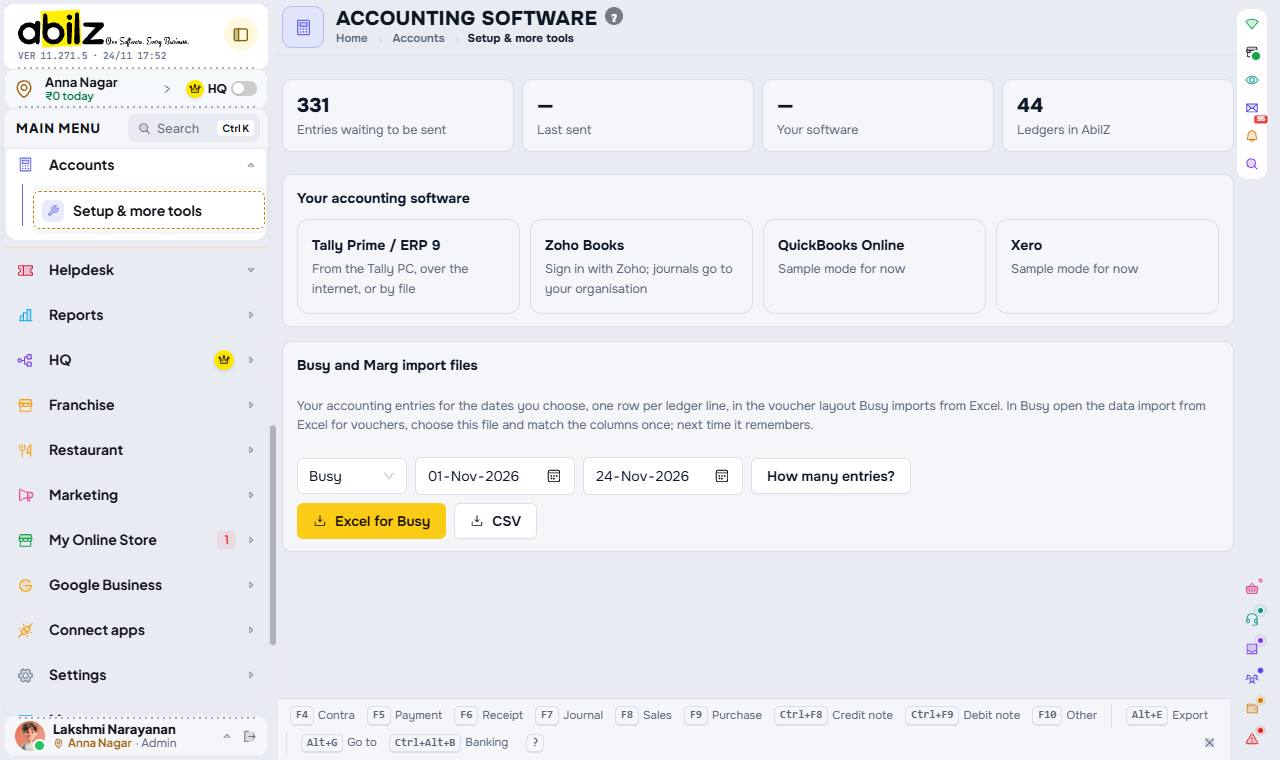
Choose your software on Accounts › Setup & more tools › Accounting software (or press Open on its card in Connect apps): Tally Prime / ERP 9, Zoho Books, QuickBooks or Xero (QuickBooks and Xero are sample mode for now).
Tally. Choose How entries reach Tally. Two of the three ways need no AbilZ app on the Tally side.
From the Tally PC. The AbilZ Windows POS on the PC that has Tally sends the entries.
- On the PC with Tally install the AbilZ Windows POS (0.1.9 or newer) and sign in with someone who can see Accounts.
- In Tally open the company and turn on Help › Settings › Connectivity › TallyPrime acts as Server (port 9000).
- In AbilZ choose Tally. Type the company name if more than one company is open.
- Leave it on: it sends once a day after 9 pm (or every hour), or press Send to Tally now on that PC.
Tally on the internet. Tally still runs on Windows, but it can be on a cloud server (like Tally on AWS or a rented Windows server) or an office PC that stays on. AbilZ sends to it straight from the internet; nothing of AbilZ is installed there.
- On that computer open the company in Tally and turn on TallyPrime acts as Server.
- Make Tally's port reachable from the internet. Tally's port has no password of its own, so put it behind https with a password (a tunnel or proxy), or let only AbilZ reach it. Your IT person or Tally partner can set this up.
- In AbilZ type Tally's address, for example https://tally.myshop.in. If it has a user name and password, put them in front of the name, as your IT person gives it (name, colon, password, then the at sign). The password is kept locked and never shown again.
- Press Check Tally answers: it shows the companies open in Tally.
- Leave it on: AbilZ sends once a day after 9 pm (or every hour) while Tally is open, or press Send to Tally now from any computer.
Download a file. No AbilZ app and no internet link to Tally.
- Press Download for Tally. The file has every entry waiting (up to 2,000 at a time).
- In Tally choose Import › Transactions (TallyPrime: Alt+O) and pick the file.
- When Tally has imported it, press I imported it. Until then the entries stay waiting, so a lost file never leaves a gap.
New ledgers are made in Tally under the same group as in AbilZ (switch Make missing ledgers). If Tally refuses an entry (for example a ledger name it does not know), nothing is marked sent; the reason shows on the page and in the Sync log. Fix it in Match ledgers and send again.
Zoho Books. The business owner presses Sign in with Zoho, signs in on Zoho's page and allows AbilZ. Each entry goes as a journal. AbilZ ledgers are matched to Zoho accounts by name: if Zoho calls one differently, type Zoho's name in Match ledgers. Zoho sends once a night at 11 pm, every hour, or only when you press Sync now.
Send entries dated from. Only entries on or after this date are sent (the first day of this month when you start), so old years your accountant already has are not sent again.
Sample mode lets you press Sync now and see how it works without sending anything.
Something wrong in this guide?
