

Connect apps › Sheets › Google Sheets. Open it at the location you want: each location links its own sheet. In HQ view the page shows every location's sheet instead.
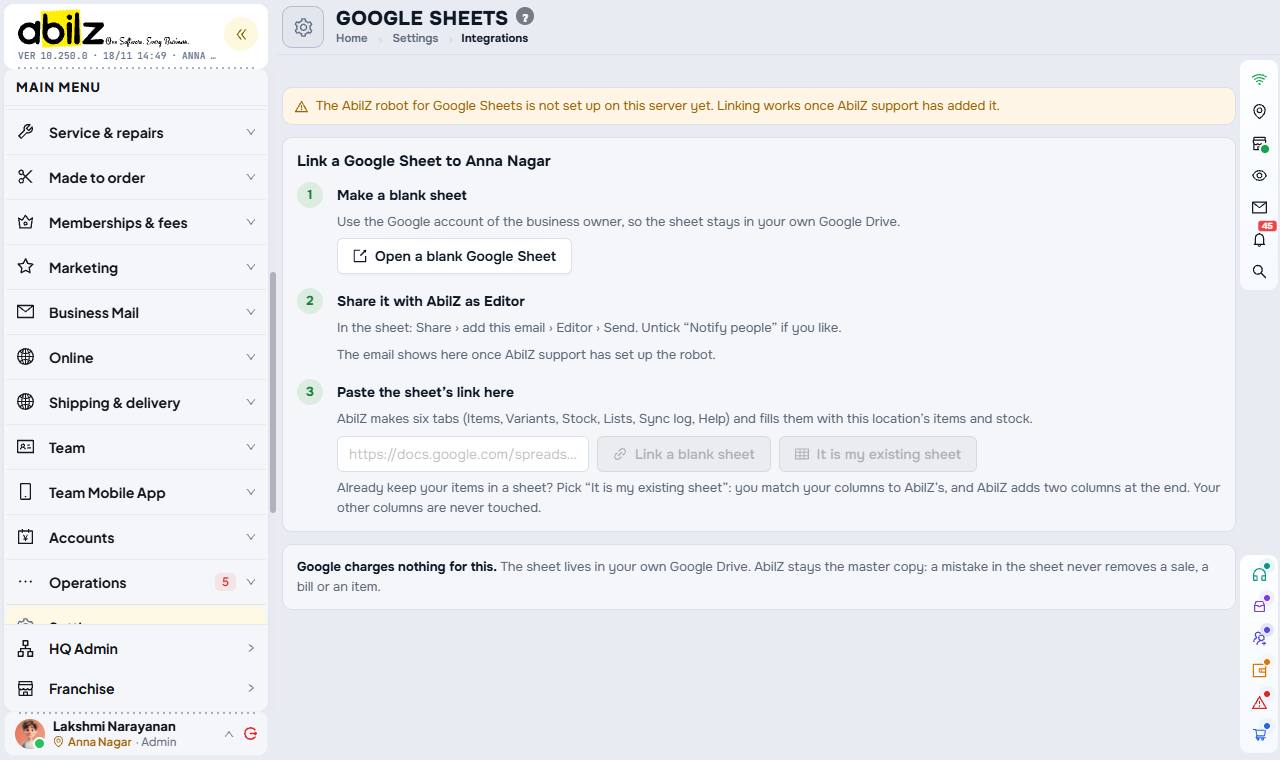
Link a sheet (three steps):
- Open a blank Google Sheet (the button opens sheets.new). Use the Google account of the business owner, so the sheet stays in your own Drive.
- Share it with AbilZ as Editor. In the sheet: Share › paste the AbilZ robot email shown on the page (Copy button) › Editor › Send.
- Paste the sheet's link and press Link sheet. AbilZ makes six tabs and fills them with this location's items and stock.
The tabs:
| Tab | What you do there |
|---|---|
| Items | Change name, code, barcode, category, brand, MRP, selling price, GST %, HSN, reorder level, Show online. Type a new row at the bottom (Name, Category, Selling price at least) to add an item. |
| Variants | Codes, barcodes, prices and Active of each size / colour. New sizes are added in AbilZ. |
| Stock | Type what you counted in Counted (and a Reason if you like). AbilZ posts the difference as a stock count. Never type over On hand: it is locked and always comes from AbilZ. |
| Lists | The categories, units and brands AbilZ knows (the dropdowns use them). Add new ones in AbilZ › Settings. |
| Sync log | Every change: time, tab, item, what, was → now, who, result. |
| Help | The same rules, in the sheet. |
What happens to a change:
- AbilZ looks at the sheet at the speed you chose and saves each changed row with the same checks as Edit item (MRP, duplicate barcodes and codes, categories…).
- Status column: "Saved · time · who", or what is wrong ("Not saved: …"). A row that is not saved keeps what you typed, so you can fix it.
- The unit of a saved item cannot change (stock and old bills use it).
- The same box changed in AbilZ and in the sheet: the newer change wins and the Status says Clash; the Sync log keeps both values.
- Deleting a row never deletes an item. The page lists it under "Taken out of the sheet": Put back or Move to Trash (asks first).
- More than 50 rows changed at once, or a price cut by more than half, waits. The page shows a yellow box: Apply the changes or Undo in the sheet (the sheet goes back to AbilZ's values; new rows are taken out).
Sync speed (the owner or a manager with Settings edit rights):
- Check the sheet: every minute, 5 (default), 15 or 30 minutes, or only when you press Sync now. Your plan may set the fastest allowed.
- AbilZ changes go to the sheet: at once (within a minute), with each check, or once a night (2 am).
- Quiet hours: no sync between two times (Sync now still works).
- Show purchase price in the sheet: off by default. Everyone you share the sheet with can see every column. Changing it sets the tabs up again.
- Pause sync, Set up the tabs again (when columns were moved or deleted by mistake), Unlink (AbilZ leaves the sheet; it stays in your Drive).
Who can edit the sheet:
- You (the sheet's owner) can edit everything.
- Staff: tick Edit the Google Sheet on their role (Team › Roles & permissions › Special permissions). Then Give access: the person, their Google email, and what they may change:
- Stock counts only: Counted and Reason on the Stock tab.
- Items without prices: names, codes, categories, GST… not MRP, selling or purchase price.
- Items with prices: everything.
- The level becomes locked columns in the sheet. Google emails them the link. Remove takes the access away at once.
- The Sync log names who changed the sheet (Google tells the last person who edited; best effort when two people type at the same minute).
Prices in this sheet (round 2):
- A business with more than one store: each location's sheet shows that location's own selling price, purchase price and reorder level (headers say "(this location)"). Typing one changes only that location. Empty the box to use the main price again.
- MRP and size prices are the same at every location; in a location sheet the size prices are locked.
- Connect apps › Sheets › Google Sheets › Prices in this sheet can switch a sheet to the whole business's prices (the main price, used by every location without its own). Changing it sets the tabs up again.
- Only the items sold at this location are in its sheet (an item switched off there leaves the sheet; nothing to answer).
Changes by someone not on your list: anyone who is not the sheet's owner, on the staff list or trusted. AbilZ saves nothing and the yellow box says who: Apply the changes, Apply and trust them (their later changes no longer wait), or Undo in the sheet. Better: give them access with a level.
Bell: changes waiting, rows taken out, and a sheet that stopped connecting show in the bell (for the owner and managers of the location).
Undo: every saved change in the Sync log has Undo: AbilZ goes back and the sheet follows. A stock count is reversed; a new item goes to the Trash. A change that was changed again since cannot be undone (undo the newer one first).
Daily copies: every night at 2 am the Items, Variants and Stock tabs are kept as an Excel file in this location's storage (backups/google-sheet), the last 30. Back up now makes one at once. Google's File › Version history keeps old copies too.
HQ › Connection › Google Sheets and Connect apps › Sheets › Google Sheets in HQ view: every location's sheet: connected or not, changes waiting, rows taken out, prices, staff, speed, last sync, last copy. State only, never the sheet.
Live edits (v8.48): nobody overwrites someone working on the same item.
- An item open for editing in AbilZ is locked in the sheet: its row (and its size rows) cannot be typed in, and its Status says "Locked: Arun is editing this in AbilZ". It opens again when the item page is closed, or 3 minutes after the person leaves. Google never locks the sheet's owner: if the owner still types there, the newer change wins and the Sync log says Clash.
- The sheet script (Connect apps › Sheets › Google Sheets › Live edits › Add the script): paste it once in the sheet (Extensions › Apps Script › paste › Save › Run "setup" › Allow), then press "I added it: check". From then on every edit in the sheet reaches AbilZ within seconds, and an item someone is changing in the sheet is read-only in AbilZ (item page, Bulk Item & Purchase, price changes) until 2 minutes after their last change. The item page shows who and saves come back by themselves.
- Without the script the item page only warns "Changed in the Google Sheet a moment ago" with Reload.
- New key makes the old script stop (use it if the script was shared by mistake). The script needs your AbilZ server's public web address; the page says so when it is missing, and AbilZ Support sets it.
- Sales, purchases and stock moves are never locked.
Your own existing sheet (v8.50): in step 3 press It is my existing sheet. AbilZ shows your tabs; pick the one with your items and match each column (Item → Item name, Rate → Selling price, Qty → Stock…; AbilZ guesses most). Choose whether your sheet's values or AbilZ's values win the first time, a category for new items, and whether your other AbilZ items are added at the bottom. AbilZ adds two columns at the end (AbilZ ID, AbilZ status) and never touches your other columns. Rows are matched by barcode, then code, then exact name; rows with no match become new items (with opening stock from your stock column); a row that matches the same item twice is left alone and says so. A stock column you keep yourself works as a count: type the new number and AbilZ posts the difference; sales show in it by themselves. Map the columns again if you add or move columns.
Moved or renamed columns: every check reads the header row. If a column AbilZ uses was moved, renamed or deleted, the sync stops with a message instead of writing in the wrong place. Undo it in the sheet, or press Set up the tabs again (Map the columns again for your own sheet).
Price approval (setting): on = MRP, selling and purchase prices (also of sizes) typed by staff wait under Prices waiting for your OK: Approve (saved; if the price was changed in AbilZ meanwhile it keeps waiting) or Refuse (the sheet goes back to AbilZ's price). Other changes by staff save at once. The bell tells you.
Stock take in the sheet: Stock take in the sheet › name, category or rack, Blind › Start stock take. A Count tab appears (Count CNT-012). Staff type what they count; selling goes on, because each count keeps the stock at that moment. The page shows counted, differences and their value. Approve and post makes one stock adjustment (the same as Stock › Counts); Cancel stock take posts nothing. The tab is then marked (posted) or (cancelled) and locked.
Reorder tab: items at or under their reorder level here, with a suggested quantity (the reorder quantity, or up to the maximum, or twice the level), the first supplier and the last cost. Tick Order? = Yes (change Order qty if you like) and press Make purchase orders: one draft purchase order per supplier; the rows say which order they are in.
Reports tab: sales by day for 14 days (counter bills and invoices), item-wise sales for 7 days (top 100) and stock value by category, written every night at 2 am, or Update reports now.
Batches and Serial numbers tabs: every batch here with expiry, days left and on hand (type Counted to count a batch); serial numbers in stock here and the ones sold in the last 90 days (read only).
Never touched from the sheet: bills, invoices, payments, the POS register, batches and serial numbers. Prices in the sheet are the business price (location prices stay in AbilZ).
Something wrong in this guide?
