

What it does. When a customer writes to your shop's WhatsApp number, the message comes into AbilZ. Your team answers it from the computer, with the customer's bills, dues, points and orders beside the chat. The common questions answer themselves.
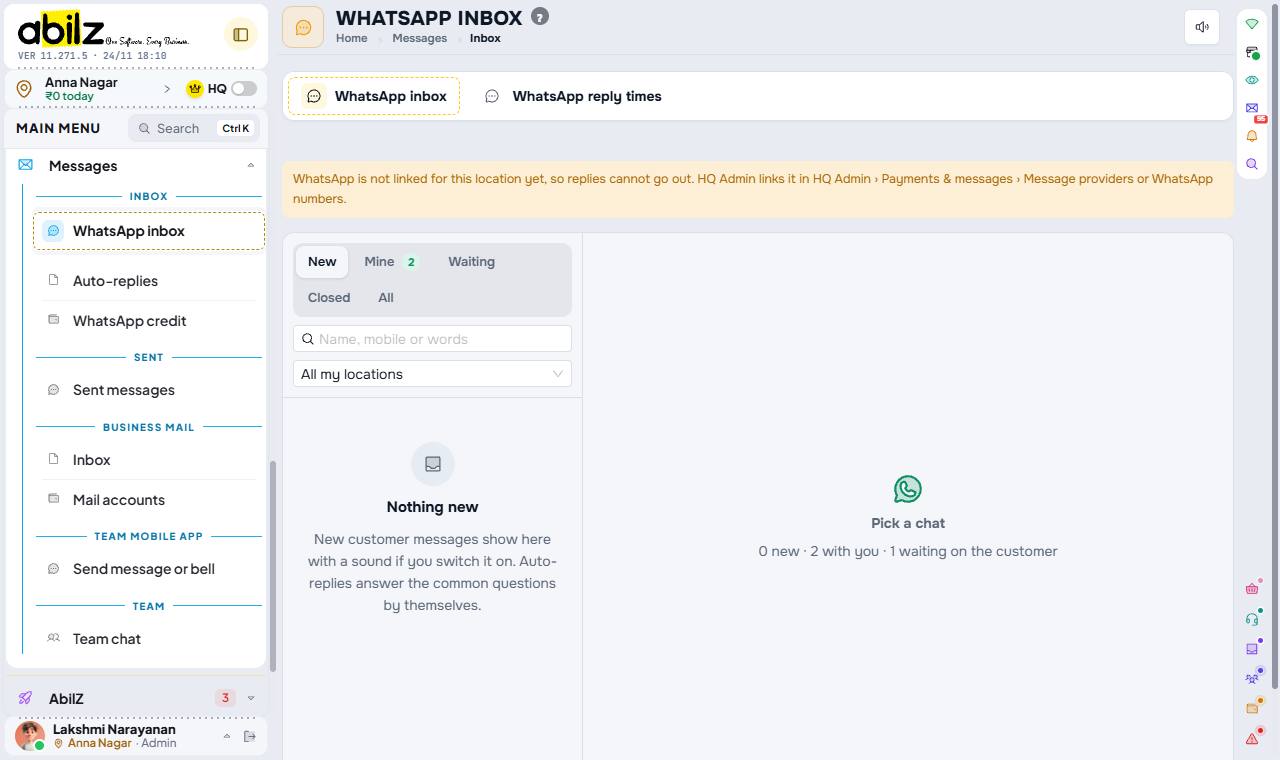
WhatsApp inbox. Open Messages › Inbox › WhatsApp inbox.
- New: chats nobody is answering yet. Turn on the speaker button at the top to hear a sound for new chats.
- Mine: chats you are answering. Waiting: waiting on the customer. Closed, All.
- Open a chat and it is yours. Others see "(your name) is answering", so two people never reply to the same customer.
- E-bill sends the link to their last bill. Pay link sends their oldest unpaid invoice with its pay page. Location sends your shop's map pin (set it in Settings › Business & locations › Location settings › Store location on the map). File sends a photo or PDF (up to 5 MB).
- Type / to pick a saved reply (/timing, /gpay, /thanks).
- Tick Private note to write something only your team sees.
- On the right: Who answers (give the chat to someone), Location (move the chat to another shop), Tags, Close chat, Waiting on customer.
- A number that is not a customer yet: type the name and press Save as customer.
The 24-hour rule. WhatsApp lets you reply freely (and free of charge) for 24 hours after the customer's last message. The chat shows the hours left. After that, press Send a template: the general template (with your own words) or an approved message template filled with the customer's name and details. Templates cost from the message wallet; Marketing ones never go to a customer who said STOP. You can still add a note.
Auto-replies. Open Messages › WhatsApp setup › Auto-replies.
- Ready replies: Order status, Bill copy, Points, Shop timing, Location, Talk to staff, Welcome menu (first message ever) and Stop / Start offers. Each has its words (English and Tamil, comma separated) and its answer. Switch each on or off.
- Customers can also send the menu number: 1 order, 2 bill, 3 points, 4 timing, 5 location, 6 staff.
- Long words allow one typo ("staus" still means status).
- Own replies: your own words and answers (parking, tailoring, delivery area…).
- Closed hours: an answer when the shop is closed, and the shop hours used in the timing reply.
- Saved replies: the short words staff use with / in the inbox.
- Try it: type what a customer would send (and their mobile, if you like) and see the answer. Nothing is sent.
- A customer who sends STOP gets no more offers; START turns them on again. This is always on.
- If no reply fits, or the customer asks for staff, the chat stays New for a person.
Numbers. HQ Admin decides in HQ › Payments & messages › WhatsApp numbers (opened with your password):
- Each location its own number: each location links its own WhatsApp number. A location without one uses the HQ number.
- HQ number for all locations: one number for the whole business. A known customer's chat goes to the shop of their last bill or online order; a new customer gets a "Pick your shop" list.
- HQ number, chosen locations their own: tick which locations may use their own.
- Lock: only HQ Admin links or changes location numbers. Locations see "Set by HQ Admin".
- After saving a number, press Test. A number sends only after its test passes.
- A location number on another WhatsApp business account than HQ: Meta approves templates per account, so AbilZ sends your templates to that account after the Test (and each new one HQ sends). Templates on location accounts shows approved, waiting, not accepted and not sent, with Copy templates and Check with Meta. Until a template is approved there, the HQ number sends it; in the inbox on that number it shows why it cannot be used yet.
HQ locks for replies. On Auto-replies, HQ Admin chooses All locations (HQ) and can lock Ready replies, Own replies, Closed hours and Saved replies. A locked part shows "Set by HQ Admin" at every location. When not locked, a location can change its own copy (and press Use HQ's to go back) and add its own keywords and saved replies.
Template checker. In Settings › Templates & designers › Messages Designer › WhatsApp and Settings › Customers & marketing setup › Message templates, the checker reads the words while you type: red lines are what Meta refuses (Send to Meta stays off until they are fixed), amber lines are what Meta may refuse or move to Marketing. Press Fix on a line or Fix all. When Meta rejects a template, its reason shows in plain words with what to do.
Alerts. Staff of the location get a phone alert when a WhatsApp chat waits for a person. HQ Admin gets one when Meta pauses or rejects a template, or warns about the number's quality. Choose who gets them in Messages Designer › Staff alerts.
Campaigns (Marketing › Campaigns & messages › WhatsApp & SMS campaigns). With WhatsApp Pro the campaign form gets:
- Link that counts taps: put {link} in the message (a WhatsApp template needs {link} in it). Each customer gets their own short link, so you see who tapped.
- When: Now, or Later with a date and time. It goes out in batches of 200 a minute, to the customers in the list at that time. If the message wallet runs low it pauses (“Paused · wallet low”); add money and press Continue. A scheduled one can be sent now or cancelled.
- Sending rules (Change): quiet hours (offers wait from 9 pm to 9 am and go when they end) and 1 offer per customer in 3 days (a customer who had a campaign, birthday or we-miss-you offer lately is left out). Utility messages are never held back.
- Open a campaign to see each customer: Waiting, Sent, Delivered, Read or Failed (with the reason in plain words), taps, whether they came back in 7 days and what they spent, and ₹ back per ₹1. Retry these sends again the failed ones that can still get it (a Meta limit, too fast, the wallet); not-on-WhatsApp and stopped-offers are not retried. Download gives the list as a file.
WhatsApp chat button. On a customer’s page and on a bill in Counter bills, WhatsApp chat opens that customer’s chat in the inbox, or starts one on this location’s number (yours to answer). A new chat has no customer message yet, so the first message is a template (Send a template).
Reply times. Messages › WhatsApp setup › WhatsApp inbox › WhatsApp reply times (a tab on the WhatsApp inbox) shows how fast the team answers: the usual reply time (half the replies were faster), the share within 15 minutes, replies over an hour, by staff, by location and by hour, chats the auto-replies answered alone and chats waiting now. Pick 7, 30 or 90 days.
Customer Connect shows the last campaign’s ticks (sent, delivered, read, tapped, failed) with Open.
Who can do what. Read chats: Customers › View. Reply, assign, close, move: Customers › Edit. Change auto-replies: Settings › Edit. Numbers: HQ Admin, or a location manager with Settings › Edit when HQ allows own numbers and has not locked them.
Something wrong in this guide?
