

In a restaurant, the register has a button column on the right: Tables, KOT, Reservations and Order ready. A button opens its panel over the items, and the bill on the left stays. Press the same button again to go back to the items. Retail counters do not change.
- Tables: start an order on a table, add dishes, and save. Move an open table to a free one, or merge two open tables into one order and one bill.
- KOT (kitchen order ticket): sends the dishes not yet sent to the kitchen. KOTs are numbered per location each day.
- Takeaway: the ticket keeps the customer on the bill, so Ready can tell them their order is ready.
- Waiters (Captain app): dishes a waiter adds on the phone join the table, and the counter keeps them.
- QR on the table: guests order from the table QR. Their order waits until a waiter or the counter confirms it; then it goes to the kitchen as one KOT.
- Guests call staff: the table QR page also has call buttons: Call waiter, Bring the bill, Water, and up to 6 of your own (Settings › Selling & POS › POS settings, Restaurant group). The table shows the call on the table map and in the Captain app, an alert appears on the right and on staff phones. Tap Coming (the guest sees it) and then Done. Bring the bill also marks the table Bill asked. Billing the table closes its calls.
- Table requests (Restaurant › Every day › Table requests): calls waiting, coming and done, and how fast your team answered, by request, by staff and by table.
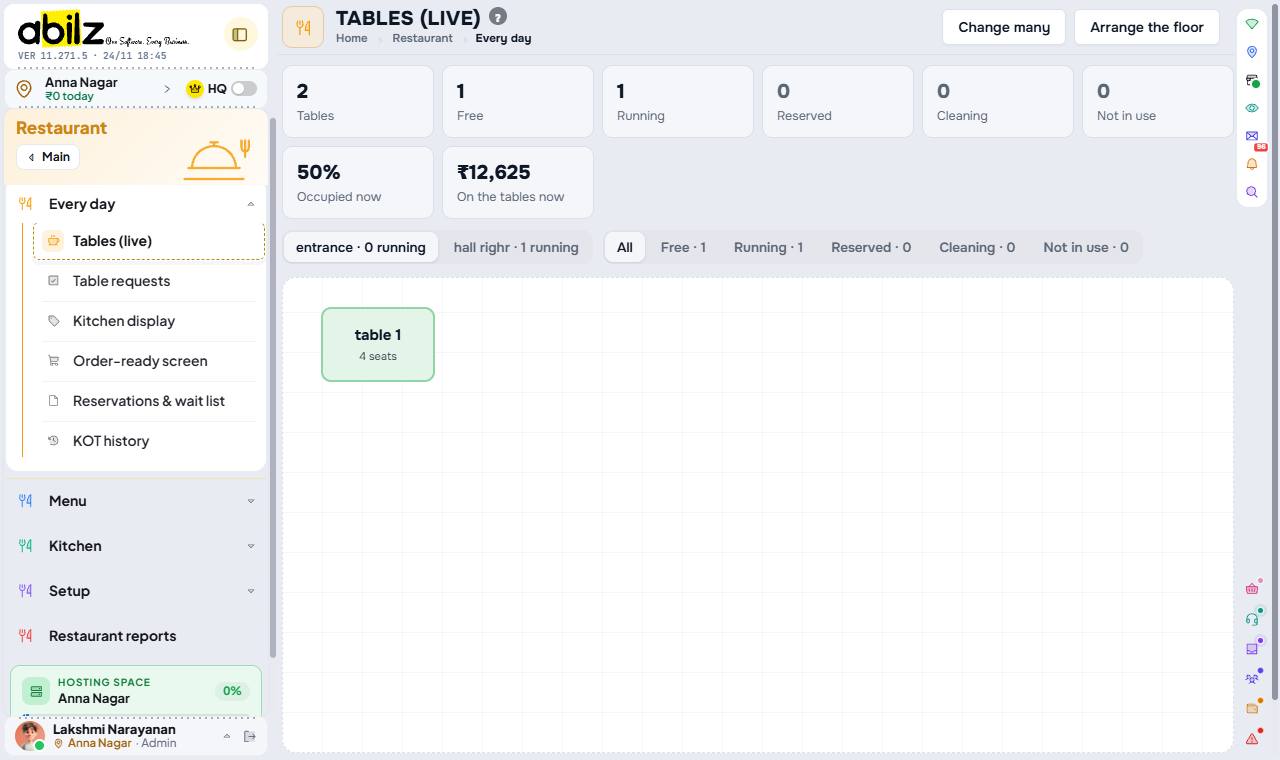
- Table states: besides Free and Running, a table can be Reserved (a booking for it from 30 minutes before its time), Cleaning or Not in use (broken or kept aside; no order can go on it). Tap a Cleaning table on the table map or in the Captain app when it is ready. Seating guests on it also makes it ready.
- Cleaning after the bill: switch on A table needs cleaning after the bill in Settings › Selling & POS › POS settings (Restaurant group). Then every billed table shows Cleaning until someone taps Ready.
- Tables (live): boxes for each state and Occupied now %, area tabs, a filter by state, and Change many: pick tables and set them Ready, To clean or Not in use (running tables are skipped). Not in use needs the right to change settings.
- Sitting time: The Tables tab of Restaurant reports shows how many times each table was used and how long guests sat (from opening the table to the bill).
- Open / Busy / Closed: in the rush, pause self orders with one switch: the shop icon in the right-side tools (or the pill in the top bar, and on the table map at the counter). Busy for 10, 20, 30 or 60 minutes opens again by itself; Closed waits until you tap Open. You can write your own message for guests. It stops orders from the table QR, the whole-shop QR, the kiosk, and My Online Store and the app where this location is the store's main location or the pickup store. Billing at the counter and guests' calls from the table go on.
- Whole-shop QR (no table): for cafés, bakeries, food courts and takeaway counters. Turn on the Whole-shop QR settings in Settings › Selling & POS › POS settings, Restaurant group (order types, name and mobile asked, cancel time, message), and print it from Restaurant › Menu › QR menu. Guests pick Take away or Eat here, give their name (and mobile), and send. The order waits under QR and kiosk orders to confirm (beside the table map, or in the register's Order ready panel). Confirm prints the kitchen ticket; its number is the guest's token, and the bill waits in Takeaway & delivery until the guest pays. The guest's phone shows the token, Preparing, then Ready to collect when you tap Ready in Order ready. An order nobody confirms in 30 minutes is cancelled by itself.
- Pay from the phone: with a payment gateway in Settings › Business & locations › Business settings › Gateways & messages (Razorpay, or Cashfree when Razorpay is not set; keys saved and tested), guests can pay on their phone. Whole-shop QR: set Whole-shop QR: when guests pay to Pay online now (or Guest chooses); a paid order goes to the kitchen at once with its token, no confirming needed. At the table: once you print the bill, the table QR page shows Pay the bill (setting: Guests pay the printed bill from the table QR). The table then shows Paid online; open it and tap Paid online · close bill: the bill is made with the payment counted (as Payment link), so nobody is charged twice. A held QR order paid online closes the same way on the register. Without gateway keys a test PC shows a sample payment (no money) so the flow can be tried; a real server never does.
- Self-order kiosk (Restaurant › Setup › Self-order kiosk): a touch screen or tablet at the entrance. Turn it on in POS settings (Restaurant group), then open its link on the screen (no sign-in; New link stops an old screen). Guests tap Eat here or Take away, pick dishes, give a name, and pay on the screen (UPI QR, card) or at the counter. Paid on the screen: straight to the kitchen with a token. At the counter: it waits under QR and kiosk orders to confirm; the token shows on the kiosk once you confirm. The screen goes back to the start by itself. Busy / Closed stops it.
- Kitchen state on the bill: each dish already sent shows where it is: Waiting, Cooking, Ready or Served, straight from the kitchen display. When a dish turns Ready the counter plays a soft sound, shows a message, and the table on the map shows n ready. Tap Served on the dish when it reaches the guest. Waiters see the same states in the captain app. Without the kitchen display a sent dish simply shows Sent to kitchen. Switch the sound and the waiter view in Settings › Selling & POS › POS settings (Restaurant group).
- Prices by order type (Restaurant › Menu › Menu & recipes › Prices by order type): a different price for Dine-in, Takeaway, Delivery, Swiggy and Zomato for each dish, in one grid with search, category filter, Download Excel and Import Excel. Leave a box empty to use the normal price; Swiggy and Zomato without a price of their own take their % from Settings › Selling & POS › POS settings (Restaurant group). The counter changes the prices when you change the order type (it says so), the captain app and the table QR use the Dine-in price, and such a bill is not counted as a changed price. Portions (sizes) keep their own prices. The same prices work at all your locations.
- Split bill: Split has two ways. By dish: tick what one guest pays now, and use − + to take only part of a quantity (4 rotis: 2 now, 2 stay). By seat: tap + Seat on a dish to put it on S1, S2… (on the counter or in the captain app), then pick a seat and its dishes are billed together. Split equally keeps one bill and shares the total between the guests; each pays their share by cash, UPI or card. Each way can be switched off, and the most guests in an equal split set, in Settings › Selling & POS › POS settings (Restaurant group).
- Removing a dish after KOT: a dish that already went to the kitchen is removed (or its quantity cut) only with a reason, an answer to Was it already made? and a Manager PIN (everyone except the Admin and the owner; change it per role in Settings › Roles & permissions, Restaurant). The kitchen gets a CANCEL ticket and the dish leaves the kitchen screen. Yes, it was made puts the dish into Wastage with its cost; No leaves the stock as it is. Cancelling a whole running order works the same way. Set the reasons, the note for Other and the owner alert in Settings › Selling & POS › POS settings (Restaurant group).
Was this helpful?
Something wrong in this guide?
Still stuck?Press ? in your portal, then Raise a ticket. It carries the page you are on.
Contact AbilZ