

Add staff, their login, PIN, home location and licence, and what each role may do.
Staff & users
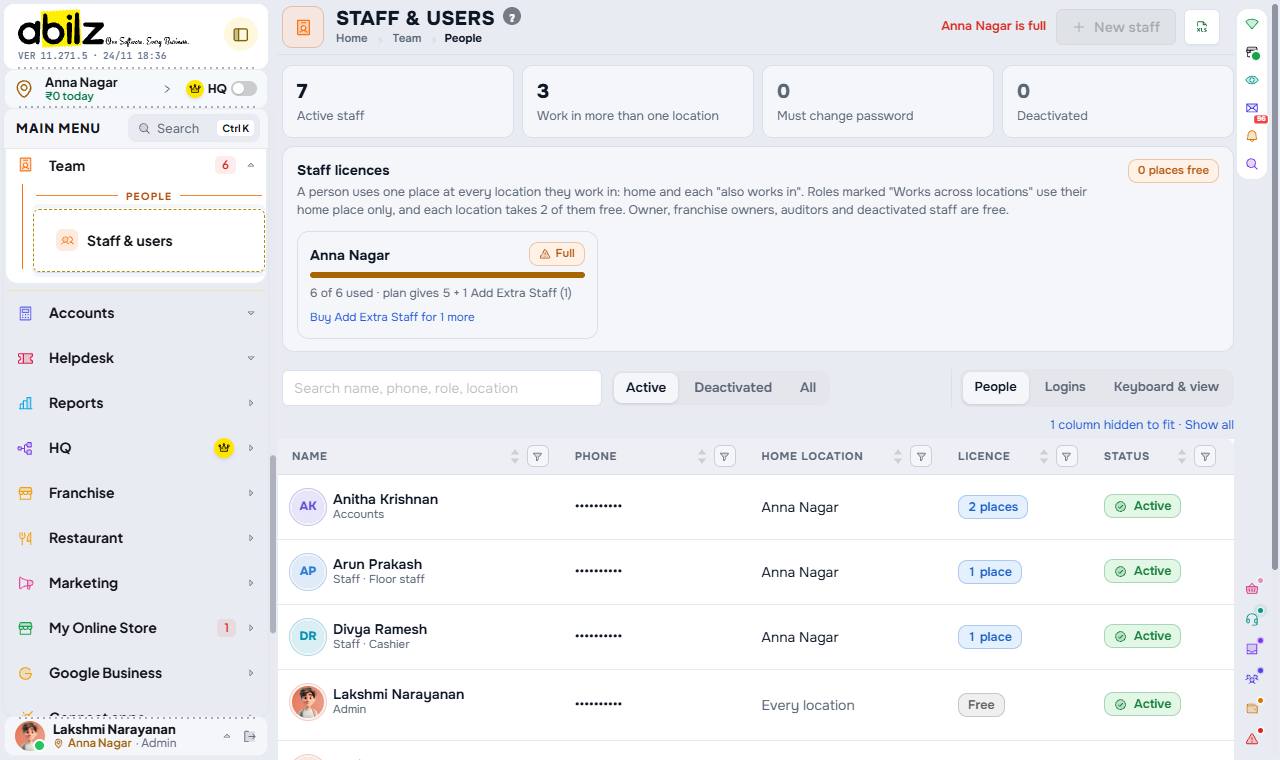
Team › People › Staff & users. Each person's Mobile (login), Email, Devices signed in, Counter PIN, Home location, where they Also work in, their Licence and Status.
- Search by name, phone, role or location. All locations or Home only.
- Reset the password of a person; they set a new one when they sign in.
- The location switcher shows only for people with more than one location.
- On a phone, the A–Z bar at the side jumps to the first name with that letter.
Tip The Team menu is in five parts: People (Staff & users), Time (Attendance & leave, Shifts & rota), Pay & performance (Salaries & incentives, Staff performance), For me (My attendance & pay) and Work (Approvals inbox, Task board, Notes, reminders & calendar).
Roles & permissions
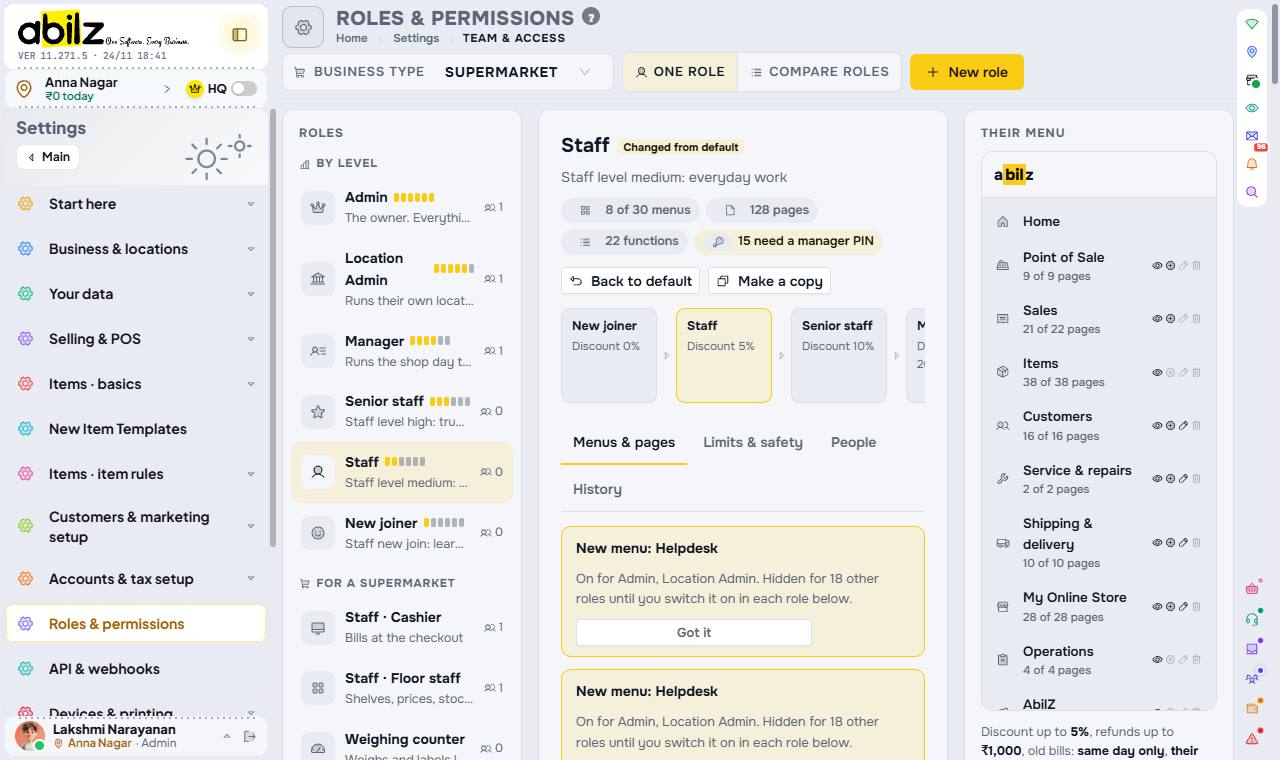
Settings › Roles & permissions. A role says what its people can see and do in each area: view, add, edit, delete, print. Some pages can be allowed alone. Give each person one role.
- Each menu in the list says how many of its pages the role may open. When the side menu shows that menu inside another one, the line says where, for example in the menu under Team › Work.
Was this helpful?
Something wrong in this guide?
Still stuck?Press ? in your portal, then Raise a ticket. It carries the page you are on.
Contact AbilZ