

Try AbilZ with a ready sample shop, see what is locked in the demo, and take your shop live when you are ready.
Start: demo or live
The first time you sign in you choose how to start. You choose once. The bar at the top shows the three steps: Start, Sample shop and Ready. A strip shows how most shops start: try the demo, practise for 2 to 3 days, Go Live, then real bills.
- Try with sample data: a ready shop like yours, with items, customers and bills. Every report already has numbers.
- Start live now: an empty shop with tax, bill format and categories ready. Your first bill is a real bill. Home opens; set up your logo, tax number and payments when you want, from your name card › Set up your store.
Not sure? Answer the two questions under the cards: is your list of items ready, and do your staff need practice with billing? The card that suits you gets the Best for you mark. Need a hand? Book a free setup call tells AbilZ to call you.
If you pick the demo, press Choose my demo and pick your sample shop. Each one shows its size, for example 32 items · 1,225 bills. Use the buttons at the top (Shops, Food and grocery, Health and beauty, Services and making) or type a name to find one. Like your shop shows the ones for your kind of business first (marked Recommended); the others say Not recommended, but you can pick any of them. The shop you pick turns green with a tick and Your pick. The panel on the right shows what loads: items, bills, customers and suppliers. Press Load with its name. You choose once: the demo stays until Go Live. Names, money and tax follow your country, and only data for the modules you have is loaded. Salons and clinics also get sample appointments, and every sample shop has two sample staff logins.
While it loads you see a little shop build itself, step by step, with the percent done. Each finished step says what came in, for example 32 items or 1,225 bills. It takes about a minute. If a step stops, nothing is lost: press Retry and it carries on from that step. If it stops again, Ask AbilZ support appears.
A welcome, then the tour when you want it
When the sample shop has loaded, Home opens with a short welcome message, once. Nothing starts by itself and nothing takes you anywhere: look around as you like. Press Take the tour (in the welcome, the yellow band at the top or your name card menu) when you want a guided walk. It walks you through Home, Items, Customers, Purchases, Reports, Staff, Set up your store and Go Live, opening each page for you. Each card has a small count down (60 seconds); at 0 it moves to the next card, and at the end of a page to the next page.
- Pause stops the count down (or press the space bar); press it again to carry on.
- Back and Next move by hand (or the left and right arrow keys). ✕ stops the tour (or Esc).
- At the end, Set up your store opens the store setup, and Watch again starts over.
- Start it any time with Take the tour: the big button on Home, in the demo band at the top, or in Account.
What a demo shop does
The band at the top says Demo shop with the name of your sample shop, has Take the tour, and shows how many days of your free trial are left. The owner also sees Book a free setup call (AbilZ calls you back) and Go Live. In the last 3 days the band turns orange with the end date; once the trial has ended it turns red and the shop is view only, with Pay and keep my shop.
- You can make bills, returns and purchases, add items and customers, and open every report.
- Nothing reaches real people: no WhatsApp, SMS or email to customers, no online payments, no tax portal.
- Bills and documents print with DEMO on them.
- Locked until you go live: uploading pictures and files (your logo is allowed), importing and exporting data, backups, tax numbers, bill number series, payment and message connections, web address, buying modules and adding branches. A locked action shows what it is and why.
- My Online Store works in the demo: make the store, design it, put items online and look at it with Open the store. Publish (putting it on the internet), changing the store name and your own web address open at Go Live, so nobody outside sees your sample store.
- Staff who try a locked action can tap Tell to ask the HQ admin. The owner gets Keep trying the demo or Go Live.
- Modules cannot be bought in the trial. A module you open shows Add after trial: it goes on your wishlist and shows on your first invoice.
- The sample data never gets old: once a week its dates move forward, so the newest bills are always from the last few days.
Go Live
Press Go Live in the demo band (or in a locked-action window). Only the HQ admin (the owner) can do it; staff see who can.
- Check: read what will happen and tick I understand. Going live is final: you can never return to demo.
- Code: AbilZ sends a 6-digit code on WhatsApp to the mobile number of your AbilZ account. It works for 10 minutes. AbilZ staff will never ask for this code. Three wrong tries lock Go Live for 30 minutes.
- Choose: Clear everything, Keep items and staff (recommended), or Keep only what I added myself. Advanced lets you choose per group. Sample bills, purchases and payments are always deleted. Choose Now or Tonight at closing time.
- Done: your next bill is a real bill and bill numbers start from 1. Staff you kept set a new password at their next sign-in.
Set up your store
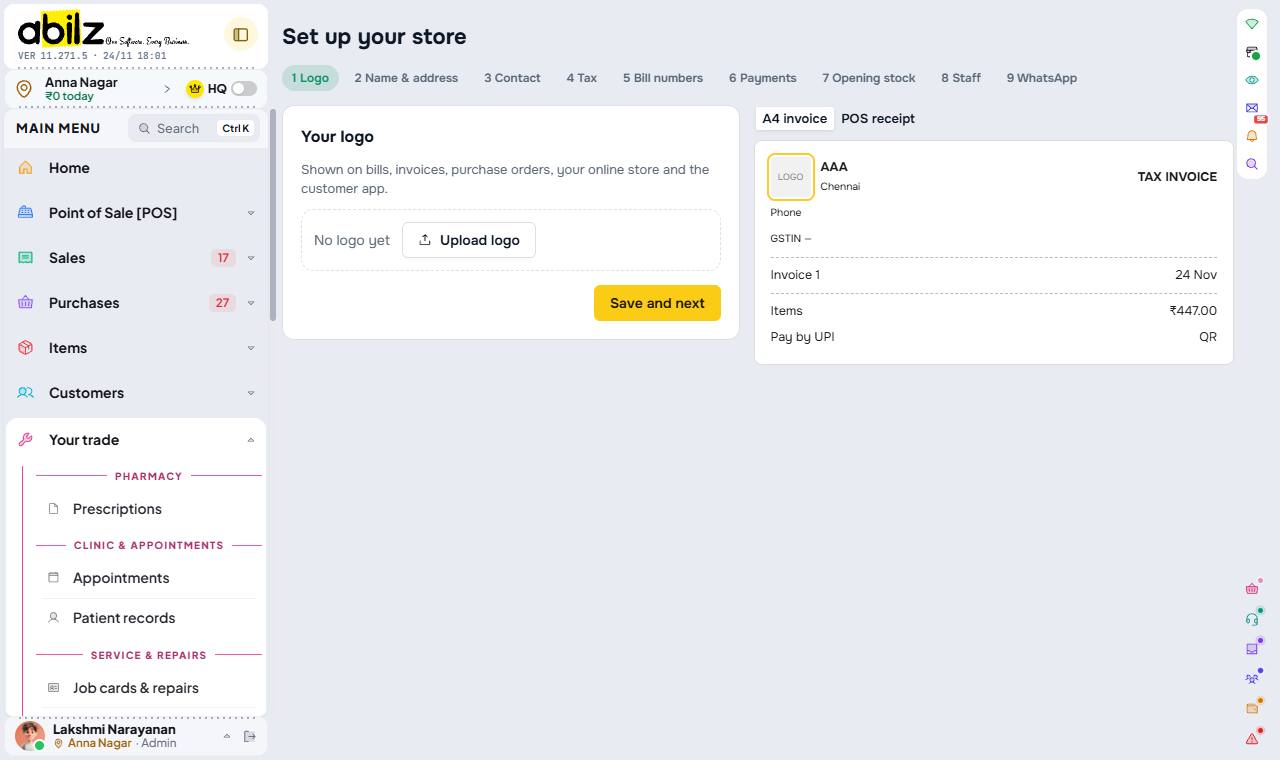
In the demo: open it from Home, from Account › Set up your store, or at the end of the tour. Your logo, shop name, address, phone and email save now and are kept when you go live. Tax number, bill numbers, payments and WhatsApp show a lock: they open at Go Live.
After Go Live: it opens by itself right after you go live (or choose Start live). One step per screen, with a preview of where it prints: your logo, shop name and address, phone and email, tax number, bill numbers, then payments, opening stock, staff and WhatsApp. Everything saves into your normal settings, so you can change it later. Skip what you are not ready for: it waits on Home in Get your shop ready, which also has Take the tour.
Good to know
- No copy of the demo is kept after Go Live, so check your choice before you press Go Live now.
- If the code cannot be sent, the page says why. Tap Book a free setup call and AbilZ helps you.
- If going live stops halfway, nothing is changed: your demo is exactly as before. Try again or call support with the reference shown.
Something wrong in this guide?
