

Your name and photo, password and counter PIN, remembered devices, your recent activity, theme and colours, language, page help, lock and sign out.
The account menu
Tap your name card at the bottom of the left menu. The Account panel opens in the menu, with ‹ Main at the top to go back.
- Your card: your photo (or initials), name, role, mobile and email, with My profile (opens your profile page, below) and Test sync (owner and people with Settings rights: checks the connection of this device).
- Preferences: opens the Preferences part of My profile: theme, colours and size.
- Language: the language of your screens. You can choose from English and the languages your business has switched on. If your business sets one language for everyone, the box is locked.
- Page help: show or hide the grey help line under each page title.
- Lock screen: locks the screen when you step away; open it again with your PIN.
- Sign out: ends your sign-in on this device straight away, also on the AbilZ server, so the session cannot be used again. Your other devices stay signed in; to sign them out too, use Forget the others in My profile.
- Tools › Dev Menu (business owner only): the owner's tools, in a new tab.
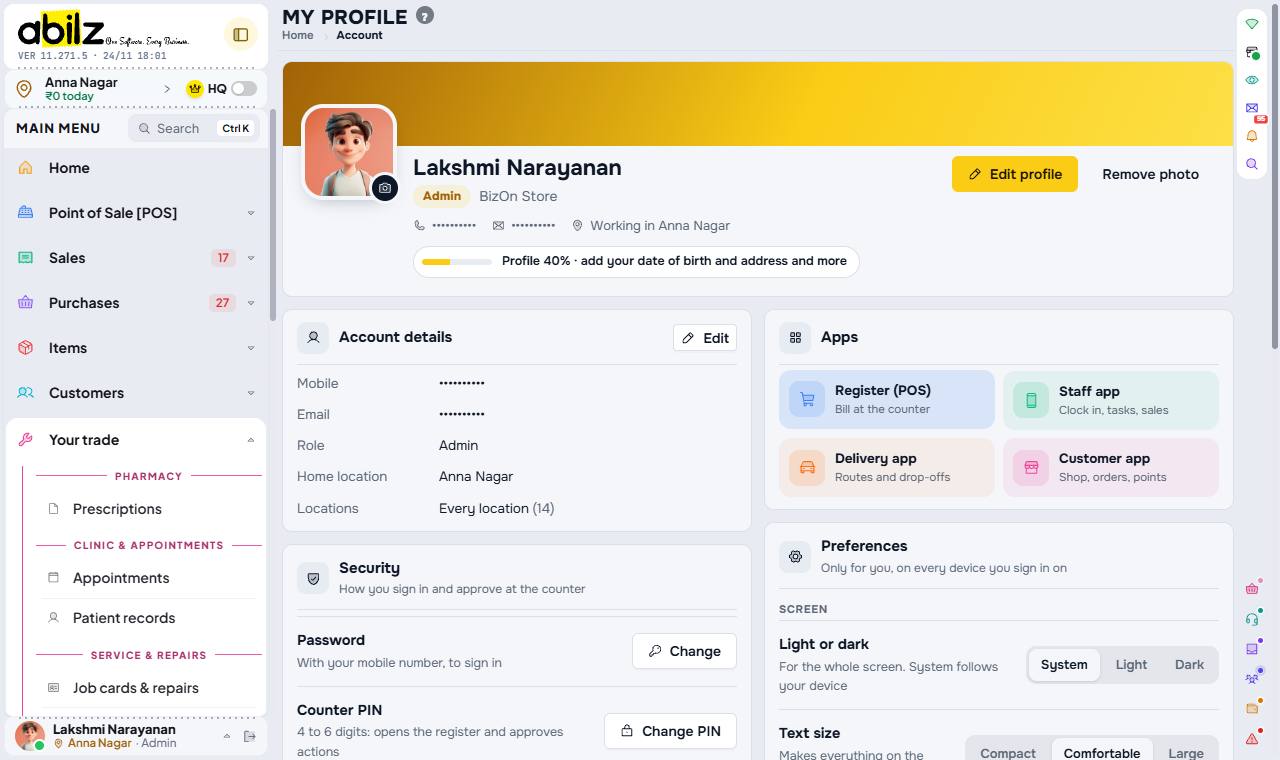
My profile
At the top: your photo, name, role, business, mobile, email and the location you are working in.
- Add photo / Change photo with the camera button. Edit profile changes your details. Remove photo asks first; your initials show in its place.
- Profile meter: while something is missing (photo, email, date of birth, address, emergency contact) a short bar shows how complete your profile is, for example Profile 60% · add your photo and email. Tap it to add what is missing.
Account details: mobile, email, other mobile, date of birth, address and an emergency contact, with Edit. An email can belong to only one person, because you can sign in with it. Press Enter to save. If you close with changes, you are asked before they are lost. Your role, home location and locations are shown.
Security
- Password: Change.
- Counter PIN: Change PIN (4 to 6 digits, used to open the register and to approve actions at the counter; keep it to yourself). To change the PIN you type your password first.
- Remembered devices: how many devices sign in without a one-time code. Forget the others signs out every other device. With more than 5, a warning says so and the button turns red: forget the ones you do not use (an old phone, a shared computer).
- A new device gets a one-time code; after 5 wrong tries the account waits 15 minutes.
My recent activity: the last things you did. The same thing done again and again is one line with how many times (for example New device signed in × 6). Pick an area at the top to see only that, and Show all for the full list.
Apps: links to the AbilZ apps you may open at this location: register (POS), Staff app, Delivery app and the Customer app.
Preferences (only for you, on every device you sign in on), in two parts:
- Screen: Light or dark (System, Light, Dark), Text size (Compact, Comfortable, Large) and the Start page after sign-in (Home, Sell or Reports).
- Lists and menu: Figures on lists (the total cards above every list), Filters on lists (the filter buttons beside the search) and Menu icons (Colourful or Plain).
Menu colour and theme: the colours of your left menu.
Something wrong in this guide?
