

Put the cards you need on Home, in your order and size, add new ones like dues and expiry, and set the Home each role of your team opens with.
What is on Home
Home opens with the welcome banner and today's sales, then cards: today's figures, sales of the last 14 days, top sellers, stock alerts, what needs attention, locations today, more actions and recent activity. Each person can change which cards they see, their order and their width. The welcome banner, Getting started and a demo shop's Things to try always stay at the top.
Change your Home
- On Home, press Customise (under the banner).
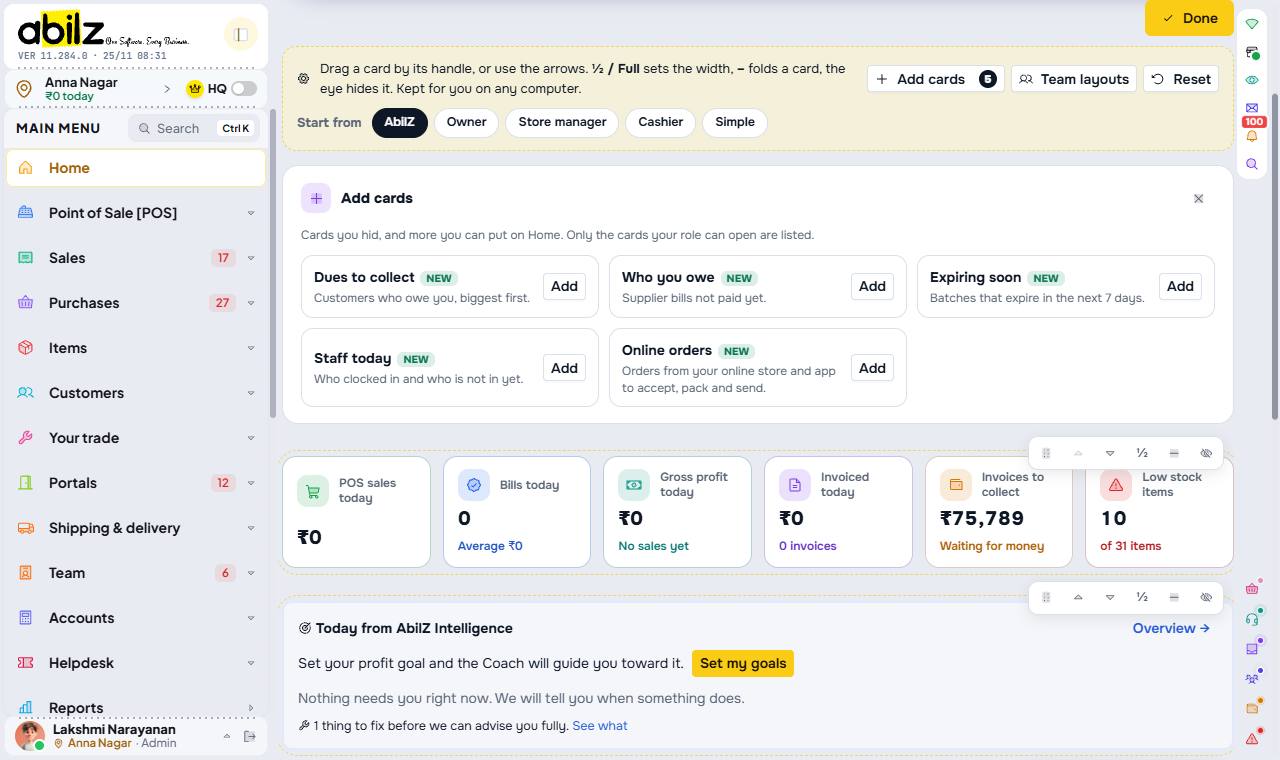
- Each card gets a small bar of buttons:
- Handle (the dots): hold it and drag the card to where you want it. It works with a mouse and on a phone.
- Up and Down: move the card one place.
- ½ / Full: make the card half or full width. Half cards next to each other share two columns.
- –: fold the card to just its title. Tap the title to open it again.
- Eye: hide the card.
- Press Done.
Your Home is kept on your login, so it is the same on any computer. Reset brings back the Home AbilZ sets (or the one the owner set for your role).
Add cards
In Customise, press Add cards. You see the cards you hid, and these extra cards:
- Dues to collect: customers who owe you, biggest first.
- Who you owe: supplier bills not paid yet, with the oldest bill's age.
- Expiring soon: batches that expire in the next 7 days (with batch tracking).
- Staff today: who clocked in and who is not in yet.
- Goals this month: your sales and profit goals, how far you are and whether you are on track (with AbilZ Intelligence and goals set).
- Online orders: orders to accept, pack and send (with My Online Store).
Press Add and the card goes to the top of Home. Only the cards your role may open are listed, so a cashier never sees profit or supplier dues.
Start from a ready layout
In Customise, Start from changes all the cards in one tap. You can change anything after.
- AbilZ: Home as AbilZ sets it.
- Owner: money first: figures, dues, who you owe, goals.
- Store manager: stock, expiry, staff and orders.
- Cashier: quick buttons and online orders.
- Simple: four cards.
HQ view and phones
- HQ view (all locations together) keeps its own layout, apart from the one for a single location.
- On a phone, cards are always full width. In Customise, switch on Own order on phones to give phones their own order; the computer keeps its order.
Set Home for your team (owner)
- On Home, press Customise, then Team layouts.
- For each role, choose what it opens with: My Home as it is now, or a ready layout.
- Switch on Lock if staff should not change it.
- Press Save.
A new person in that role sees this Home on their first day. With Lock on, they have no Customise button and Home says it is set by the owner. With Lock off, they can make Home their own, and Reset brings them back to the role's Home. Use AbilZ gives the role the AbilZ Home again. Each change is in the activity log.
Something wrong in this guide?
