

Period: Today, Yesterday, Last 7 days, This month, Last month, This year, or Custom dates.
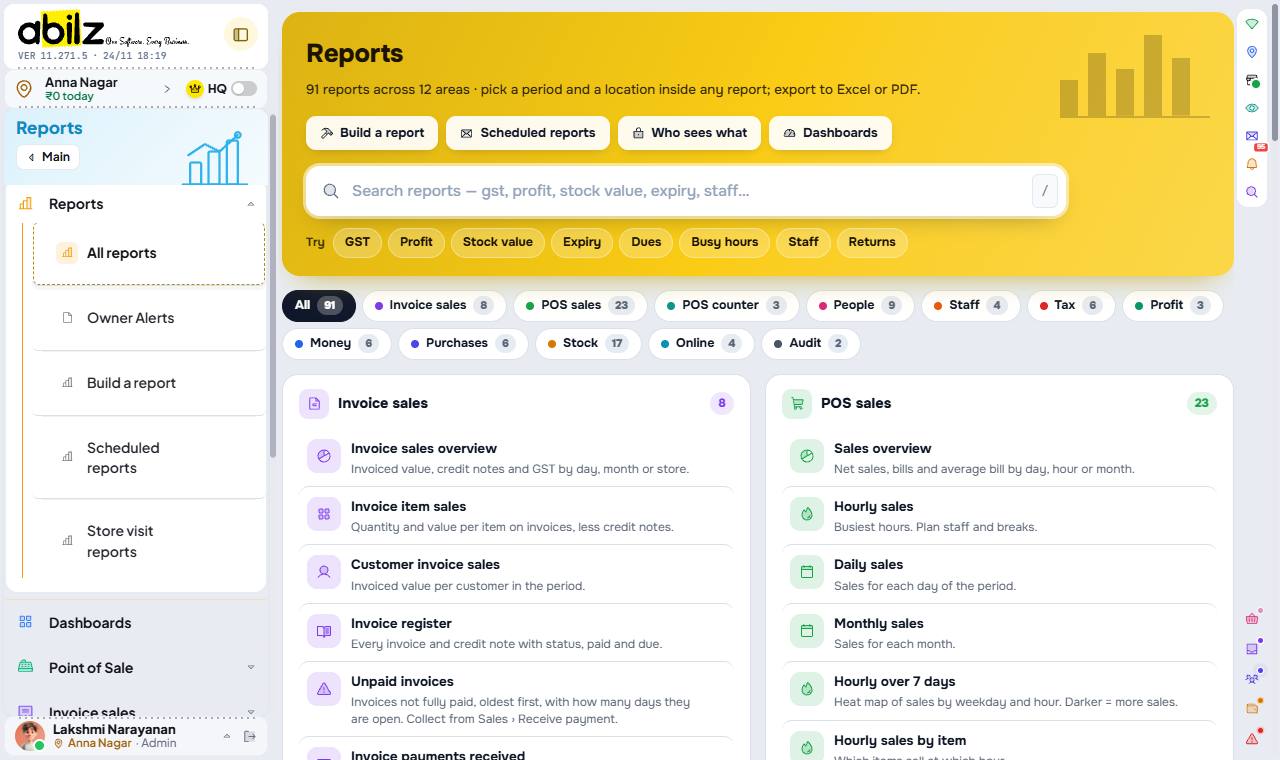
- Period: Today, Yesterday, Last 7 days, This month, Last month, This year, or Custom dates.
- Location: in This location view the report shows the location you work at, with its name in the bar. People with HQ access switch to HQ view (Alt+H) to pick one location or All locations, and to put locations side by side: see Locations side by side.
- Group by: add up the rows by one of the report's text columns (cashier, store, category…).
- Filters: only the filters the report can use are shown — Staff, Customer, Paid by, Item, Category, Brand (counter sales), Customer and items (invoices), Supplier and items (purchases). Item, customer and supplier boxes search as you type.
- Search in this report: finds rows by any word or number in them. The total row still shows the total of every row.
- Sort: click a column title. Bills, items, customers and suppliers are links: click one to open the bill, the item page, the customer or the supplier.
- Columns: show or hide columns and move them up or down. Excel and PDF use the same columns. The choice is kept for that report on this computer.
- Show chart / Hide chart: a chart of the report, or of the first money column of the rows on the page.
- Pages: 25, 50, 100 or 250 rows a page. A year of bills loads one page at a time.
- Open the full page: some reports also have their own page (for example the stock or dues page); this button opens it.
Was this helpful?
Something wrong in this guide?
Still stuck?Press ? in your portal, then Raise a ticket. It carries the page you are on.
Contact AbilZ