

Buy from a supplier: pick the supplier, add the items, then Receive now (a purchase bill) or Send order (a purchase order).
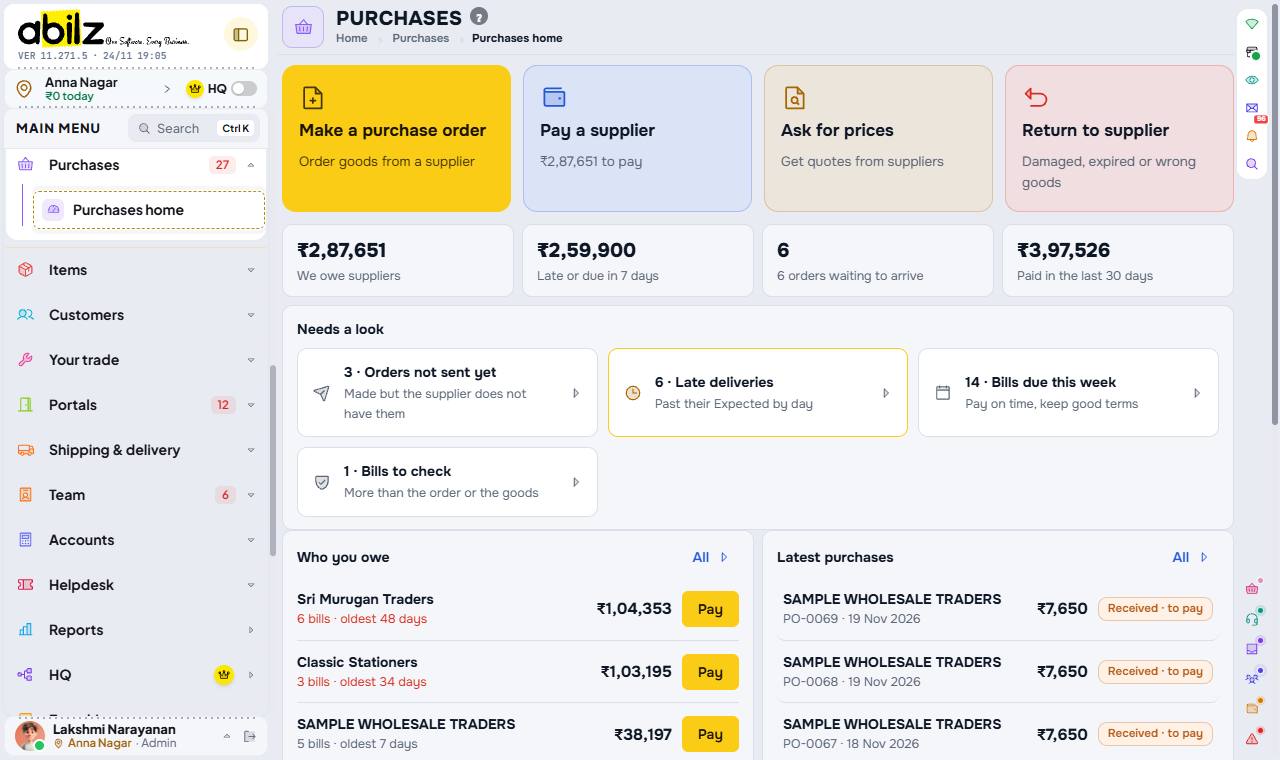
- Purchases › Receive & bill › Purchase bills and press New purchase. Or tap Make a purchase order on Purchases › Purchases home. A new purchase starts as a direct purchase; untick Direct purchase to make it an order.
- Supplier: pick it. The supplier card shows the phone, GSTIN, credit limit and payment terms. Use Edit details to change the supplier.
- Supplier's bill no. and Payment due: fill them in if you have them.
- Add items. The search box is ready when the page opens. Type the name or code, or scan the barcode. After each item the cursor comes back to the search, so you can scan one after another. Press Alt+I to jump back to the search from anywhere.
- Add a one-off line (under the items) adds something that is not an item in your list. It does not change stock.
- Add a text row adds a heading or remark between items.
- Quantity, cost, discount, GST on each line.
- + free: the supplier gave free units (buy 10 get 1). Click + free under the quantity and type how many. They come into stock at no cost, so your cost per unit goes down.
- Bought by the box: if the item is bought in boxes and sold in pieces, the line shows it, for example "box of 12 = 24 pc".
- Freight: type the transport charge in the totals box, or add named charges. It is spread over the lines, so each item's cost includes it. Transport, loading or toll you paid yourself (not on the supplier's bill) goes under Paid to others: see Freight, other charges and costs paid to others.
- More details (link under the supplier card), when you need them:
- Supplier's bill amount: type the total printed on the supplier's bill. If it does not match your total (by more than ₹1), the bottom bar tells you the difference before you save, so mistakes are caught early.
- Expected by (orders only): when the goods should arrive. An order not received by then shows Late in red.
- Finish with the buttons in the bottom bar:
- Direct purchase: Receive now.
- Order: Send order to supplier.
- Save keeps the draft. Cancel goes back without saving.
Was this helpful?
Something wrong in this guide?
Still stuck?Press ? in your portal, then Raise a ticket. It carries the page you are on.
Contact AbilZ