

Upload a photo or PDF of a supplier bill and AbilZ fills the purchase for you to check: supplier, bill number, date and every line.
Purchases › Receive & bill › Bill Scan.
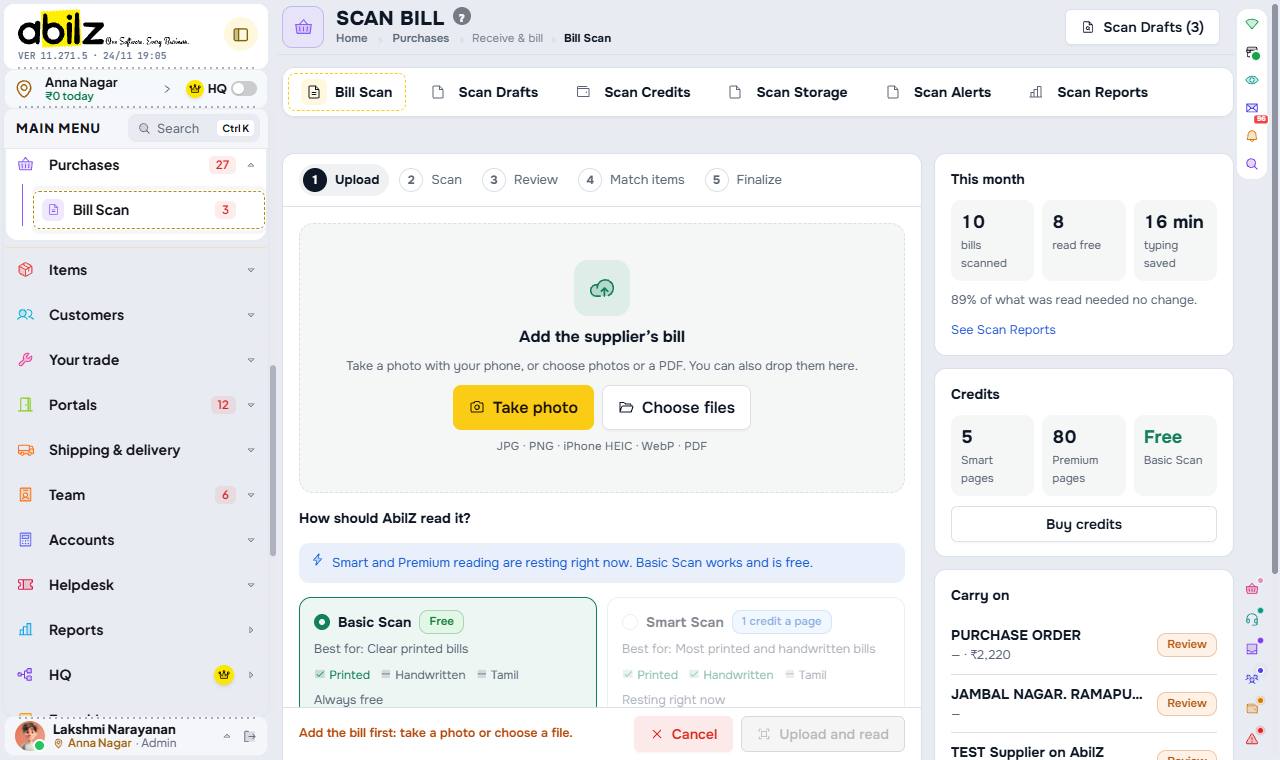
Bill Scan turns a supplier's bill into a purchase. You upload the bill, AbilZ reads it, you check it beside the bill picture, and you save a normal purchase that adds the goods to stock. Nothing changes in stock until you press Confirm and save purchase.
It comes with the Purchase Scan module. Add it in AbilZ › Marketplace › Marketplace.
The five steps
- Upload. Press Take photo to use your phone's camera, or Choose files for photos (JPG, PNG, iPhone HEIC or WebP) or one PDF. For a long bill, press Add a page for each page; remove a page with its ✕. Photos are changed to JPG and made smaller on your device first, so they upload fast. Choose how to read it:
- Basic Scan is free and good for clear printed bills.
- Smart Scan reads most printed and handwritten bills. It uses 1 Smart Scan credit for each page.
- Premium Scan is best for handwritten, Tamil and hard bills. It uses 1 Premium Scan credit for each page. Each way says what it is good for (printed, handwritten, Tamil) and what it costs. You see your credits before the scan and what will be left after it. If the Upload and read button is locked, the line beside it says why. Beside the page you see this month's bills and time saved, your credits with Buy credits, and unfinished scans to carry on. Each photo is checked on your device before any credit is used. A blurred, dark, very tilted or too small photo, or light shining on the bill, is marked Not clear: take or choose another photo, or switch on Use it anyway. AbilZ also crops the photo to the bill, turns a sideways photo upright and straightens a tilted one by itself.
- Scan. AbilZ reads the bill. You can leave the page; it carries on. The buttons stay locked while it reads, so the same bill is never sent twice.
- Review. The bill picture sits beside what was read: zoom in with + or double-click a spot, turn it, or open it full size. One box at the top lists everything to check; tap a line in it to jump to that field. Pick the bill date from a calendar. Each line shows quantity, rate and GST; tap the grey line under the item for free quantity, discount, HSN, unit, MRP, batch and expiry. A box under the lines says Matches the bill or how much it is off. Fields marked Check were hard to read, and AbilZ tells you when the lines do not add up to the bill's total, when GST looks wrong, or when the GSTIN has a mistake, is your own GSTIN, or differs from the one saved for the supplier. If this supplier's bill number is already saved, you are warned. MRP, batch, expiry and the bill discount are read too; fix them here if needed. Free lines (FREE, FOC, scheme) are added as free quantity on the same item.
- Match items. Filter All, Matched by themselves or To decide, and press Create all as new items for every line not matched yet. Each line says how it was matched (remembered for this supplier, same code, same name, similar name) and shows the cost of one piece, your selling price and the margin left. When a supplier charges more, AbilZ offers Keep your margin: switch on Update price and the item's selling price goes up to keep the same margin (never above the MRP) when the purchase is saved. Each line is matched to your own item. Existing lines show the item; for a New line, pick one of your items or switch on Create item. The supplier is matched by GSTIN or name, or you create it here. Items that keep batches need a batch here. AbilZ remembers your choices for each supplier, so the next bill from them matches by itself. If a supplier's price went up since your last purchase, the old price and the change show beside the line (from another supplier when you never bought it from this one).
- Pack size is how many of your stock units are in one unit on the bill (1 box = 12 pieces). AbilZ fills it from the item's purchase unit, from words on the bill such as 12 x 1 kg, or 12 for a dozen, and says where it came from. Change it if it is wrong; it is remembered for this supplier.
- With free goods or a pack size, the real cost of one piece shows under the rate.
- Each line is checked against your item: a different GST rate or HSN, an MRP that changed or is below the cost, goods expired or expiring soon, or a cost that is not below your selling price. When the bill's MRP is different, switch on Update to take it into the item.
- Finalize. The bill shows like a receipt, with a list of exactly what will happen when you confirm (new supplier and items, stock, prices, payment due). After saving you see how many lines were filled and matched for you and the time saved, with Scan the next bill, Open the purchase and Pay the supplier. You see what this supplier is owed, how much is late, when this bill is due (the date printed on the bill, or the supplier's payment terms) and the total after this bill against their credit limit. If you have open orders to this supplier, they are listed with how well they match: choose the order this bill is for and the goods are received into that order. Any difference from the order (more than ordered, a higher rate, an item not ordered) shows first, and the bill may be held for a manager before it is paid. Choose New purchase when the bill is not for an order. If a price went up 15% or more, or something is badly wrong (such as goods already expired), tick I have checked these and want to save first. Press Confirm and save purchase. New items and the supplier are made, the purchase is saved and the goods go into stock. Then choose Keep copy to keep the bill picture with the purchase, or Delete copy to free space.
Good to know
- Several bills in one PDF or photo set: switch on This PDF has more than one bill before uploading. Each page is read on its own (a computer-made page free, otherwise 1 credit a page as always), the pages are put together into bills by bill number and supplier, and each bill becomes its own draft in Scan Drafts, which shows the progress. If reading stops, press Try again: pages already read are kept and not charged again. Up to 30 pages at a time.
- When prices went up 5% or more, a Scan Alert is made and the owner is told on their phone or PC when the purchase is saved.
- Items you buy in boxes (Items › purchase unit) come into stock in pieces, the right number.
- Bill by email: in Business Mail, a mail with a PDF or photo attached has Scan this bill next to the file. It opens Scan Bill with the bill already added, with no download or upload.
- Supplier on AbilZ: when your supplier also bills with AbilZ, their own bill to you is copied exactly and free: every line, HSN, GST, batch, expiry and MRP, with no reading and no credit. It happens by itself when the e-invoice QR or the reading gives their GSTIN and bill number; on Review you can also press Look for it on AbilZ. Only a bill made out to your own GSTIN is ever copied.
- A computer-made PDF (not a scan) is read from its own text, free.
- An e-invoice QR on the bill gives the supplier GSTIN, bill number, date and total for free.
- The same bill uploaded again is not read again and takes no credit.
- If a scan fails, no credit is taken. Press Try again, or use Basic Scan.
- If Basic Scan cannot read a bill well, you can read it again with Smart Scan or Premium Scan. Credits are used only if you choose it.
- Items with serial numbers: the purchase is saved and opens, so you can type the serial numbers and press Receive.
- Who may do what is set in Settings › Roles & permissions (Purchases › Bill Scan): upload and scan bills, save purchases from scanned bills, create new items and suppliers from a scanned bill, and delete scanned bill copies (and Clear). Each can be Allowed, need a manager PIN, or be Not allowed.
- Bill copies count in this location's storage. Unfinished scans stay in Drafts until you finish or delete them.
Was this helpful?
Something wrong in this guide?
Still stuck?Press ? in your portal, then Raise a ticket. It carries the page you are on.
Contact AbilZ