

Finish or delete unfinished bill scans, buy scan credits, free the space used by bill copies, and see how scanning went month by month.
Purchases › Receive & bill › Bill Scan. Drafts, credits, storage, alerts and reports are tabs at the top of Bill Scan; the alerts count shows on its menu row.
These tabs come with Bill Scan (module Purchase Scan).
Scan Drafts
Purchases › Receive & bill › Bill Scan › Scan Drafts lists the bills you started scanning and did not finish. Each scan is a card showing its step. Filter Ready to save, Waiting for you or Failed. Press Carry on to go on where you left off, or Try again for a scan that failed; a failed scan never takes a credit. Save all ready bills saves, in one go, every bill already at Finalize with every line decided, nothing marked red and no big price rise; anything else is listed as not saved. Tick several scans to delete them together. Delete removes the scan and its bill copy, which frees the space. No purchase is touched.
Scan Credits
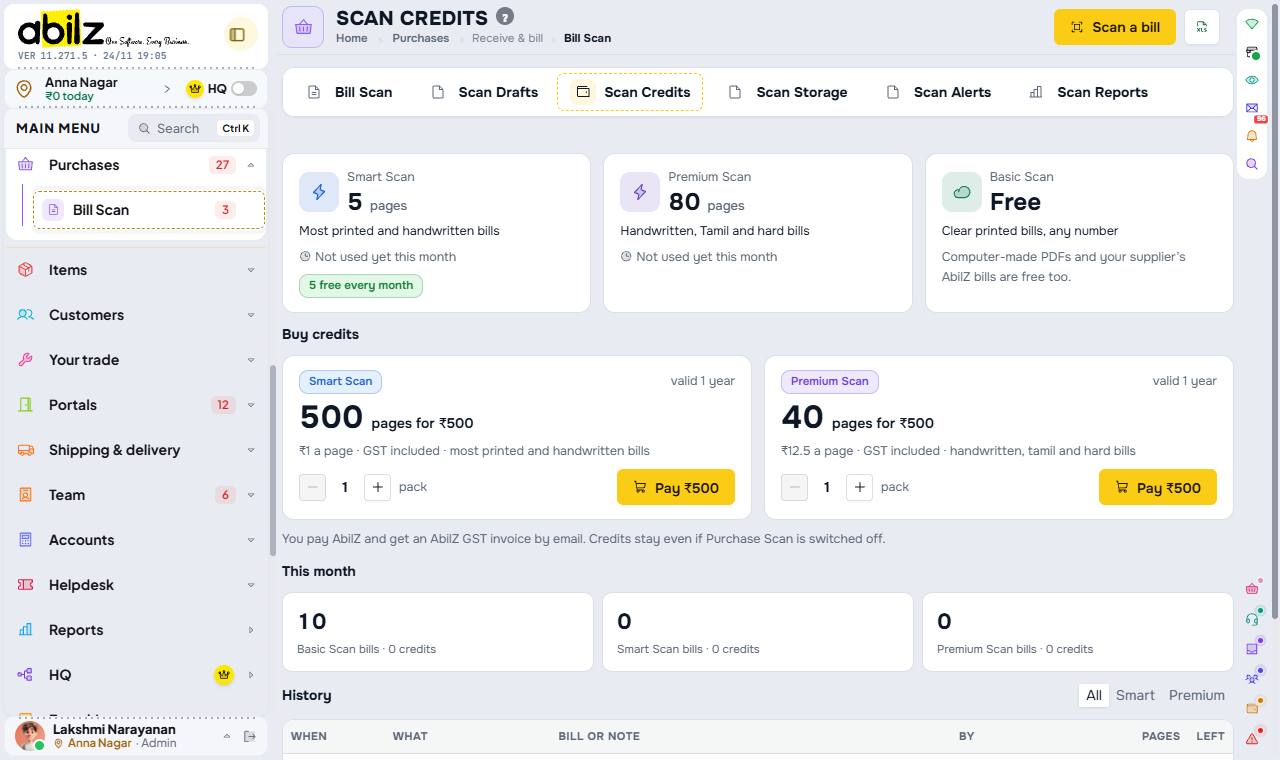
Purchases › Receive & bill › Bill Scan › Scan Credits shows this location's credits:
- Smart Scan credits read printed and handwritten bills.
- Premium Scan credits read handwritten, Tamil and hard bills.
- Basic Scan is always free.
One credit reads one bill page, so a 3-page bill uses 3 credits. Purchase Scan may also give some free pages every month. Each kind shows about how long your credits last at the pace you used them this month.
To buy, each pack shows its pages and the price of one page. Choose how many packs with − and +, then press Pay. You pay AbilZ and get an AbilZ GST invoice; GST is included in the price. Buying needs the module Bill Scan Add Credit at this location. The owner (HQ Admin) or the location's manager can buy. Credits you bought stay saved even if Purchase Scan is switched off, and each pack shows when it ends.
This month shows how many bills were read with each kind of scan and the credits used. History (filter Smart or Premium) lists every credit bought, used, given back or ended, with the bill and who scanned it.
Scan Storage
Purchases › Receive & bill › Bill Scan › Scan Storage shows how much of this location's space the scanned bill copies use, split into copies kept with purchases and unfinished scans. When they fill it up, a note shows on Scan Bill too. Open any copy with its arrow, or delete one copy with its bin (the purchase stays).
Clear deletes the copies of bills that are already saved as purchases. You can clear only copies older than 30, 60 or 90 days, or any age. You see how many copies and how much space first, and you confirm. The purchases stay and note that their copy was deleted. Unfinished scans are never cleared here: delete them in Scan Drafts.
Scan Alerts
Purchases › Receive & bill › Bill Scan › Scan Alerts keeps everything about Bill Scan that needs you in one place. The number beside it in the menu counts the alerts you have not read yet. Each alert has a button that takes you straight to the fix:
- Credits low or finished: Buy credits. You can still use Basic Scan.
- Smart reading is resting: Use Basic Scan. No credits are taken while it rests.
- Scanned bills fill the space: Clear old bill copies.
- A scan did not work: Retry. No credit was taken.
- The same bill is already saved: Open purchase to check it.
- A supplier raised prices: Open purchase to see the old and new prices.
- Items expired or ending within 30 days on a bill: Check the bill.
- A photo was not clear: scan it again with a clearer photo.
Press Read or Mark all read when you have seen them, or Dismiss to hide one. Urgent alerts stay until the problem is fixed, then close by themselves. Press தமிழ் to read the alerts in Tamil.
Scan Reports
Purchases › Receive & bill › Bill Scan › Scan Reports shows how bill scanning went at this location, month by month (choose the last 3, 6 or 12 months):
- Bills scanned and pages, and how many were read free (a computer-made PDF, or the same file again).
- Credits used and how many scans became purchases; scans deleted without a purchase show as dropped.
- Read right first time: of the fields read, the share nobody had to change before saving.
- Lines matched by themselves to your items, the lines you did not have to type, and about how many hours of typing that saved.
- Upload to purchase: how long the middle bill took from upload to saved purchase.
- Suppliers whose bills needed most fixing: ask them for a computer-made PDF (read free) or use Premium Scan for their bills.
Something wrong in this guide?
