

Every entry in your books in date order, and how to enter one by hand.
Day book & vouchers
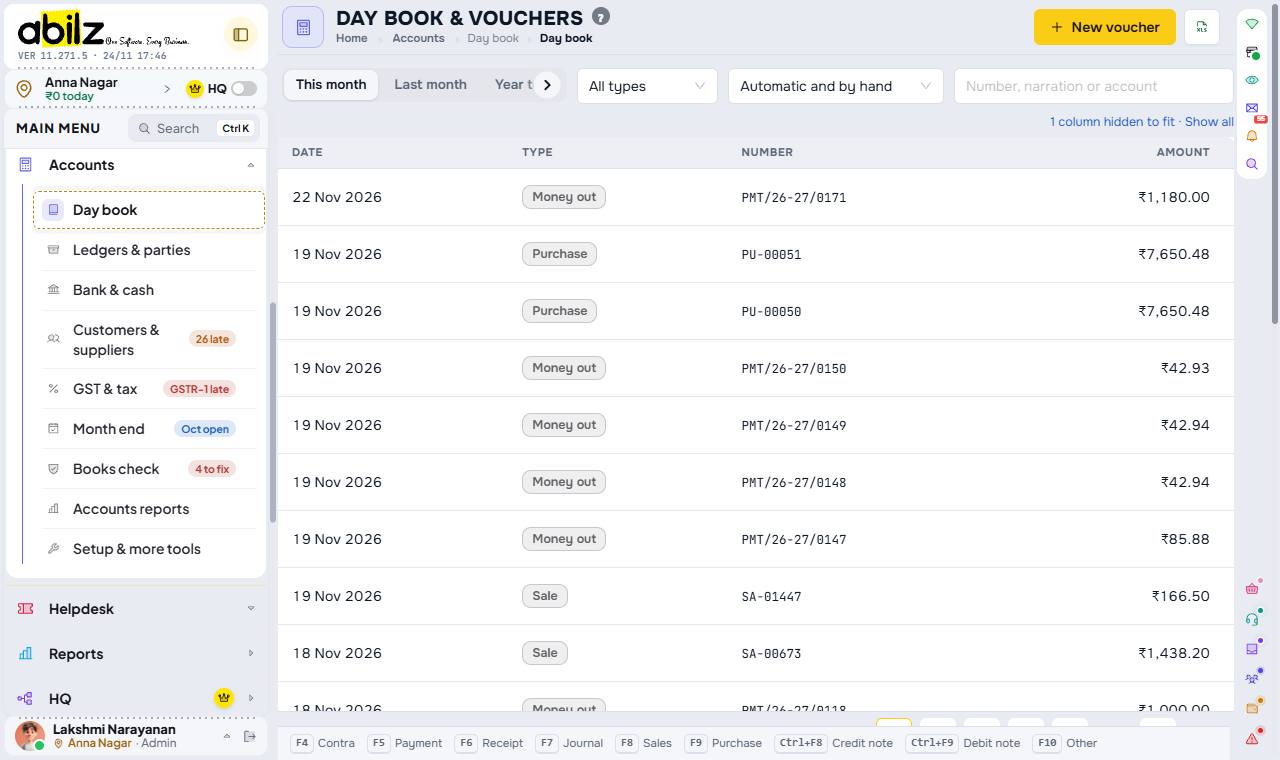
Accounts › Day book. Every entry with its Date, Type, Number, Narration and Amount.
- Most entries are Automatic: bills, invoices, purchases and payments post by themselves. Entries Entered by hand are the ones your accountant adds.
- Filter by period and type; search by number, narration or account.
- Keys: the up and down arrows move over the entries, Enter opens one, Alt+2 copies an entry you made by hand as a new one, Alt+I starts a new entry on the same day, Alt+X cancels it with a reversal (nothing is ever deleted).
- Waiting entries at the top: optional, post-dated and reversing entries that are not in the books yet, with Post, Post today and Drop.
New entry
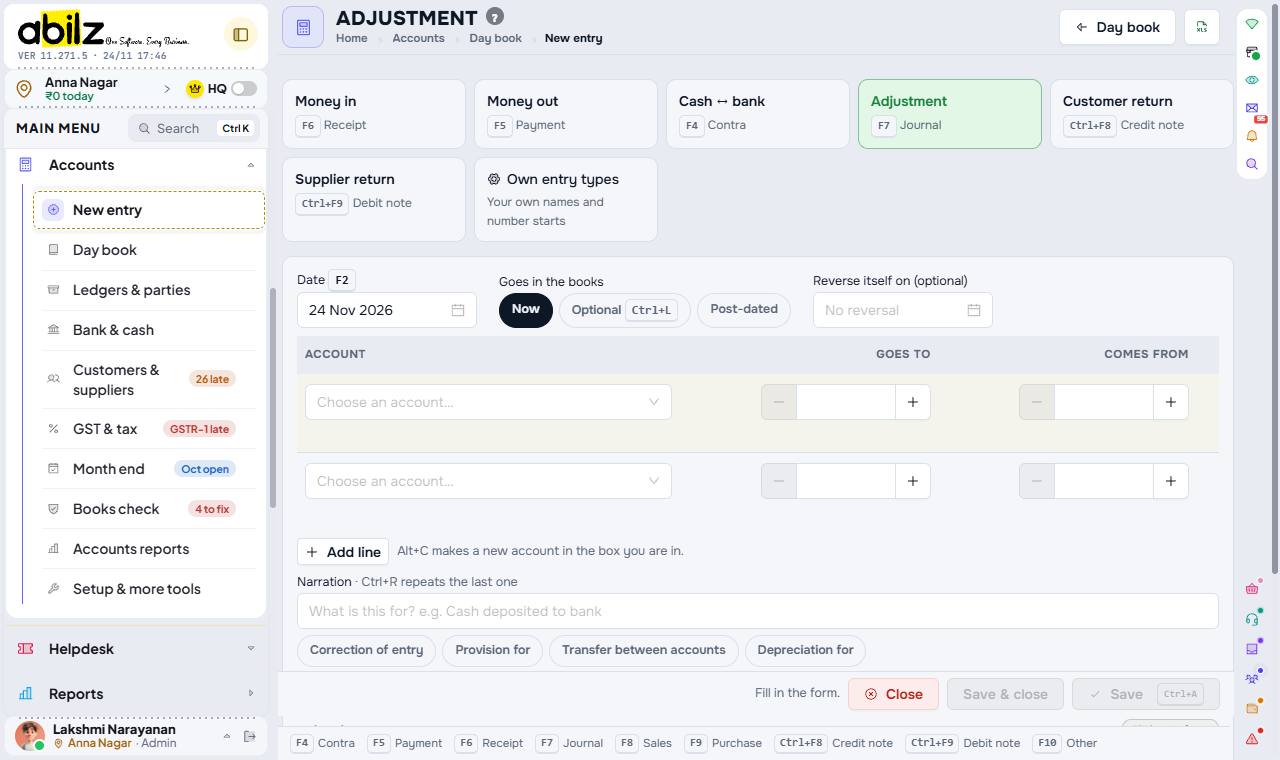
Accounts › New entry, then the kind of entry, or press its key from any Accounts page: F4 Contra (cash to bank), F5 Payment, F6 Receipt, F7 Journal, Ctrl+F8 Credit note, Ctrl+F9 Debit note.
- Pick the accounts. Under each one you see its balance now, as Tally's Cur Bal.
- Enter the amount. Both sides must be equal before it saves.
- Write what it is for. Ctrl+R brings back the last narration of this kind.
- Ctrl+A (or Save) saves and opens the next blank entry of the same kind. Save & close goes back to the Day book.
Tally things that work here
- Alt+C in an account box makes a new account on the spot.
- Optional (Ctrl+L): the entry is kept but stays out of the books until you post it from the Day book.
- Post-dated: pick a later date; the entry goes into the books by itself that day.
- Reverse itself on (journals): for a cost of the month whose bill has not come; the opposite entry goes in by itself on the day you pick.
- Bill-wise: a receipt from Customers (debtors) or a payment to Suppliers (creditors) asks for the customer or supplier and shows their open bills. Enter what goes against each bill (Fill oldest first does it for you). Whatever is left is kept as an advance: a customer's goes to their store credit, a supplier's is used on their next bills. Money owed on counter bills is taken in Sales › Get paid.
- In another currency: tick it under the amount, pick the currency, type the amount in that currency and the rate; the rupee amount is worked out. For a receipt or payment against an amount booked earlier at another rate, type Booked at: the difference goes to Exchange rate gain or loss.
- Own entry types: your own kinds of entry, like Cash payment, Anna Nagar, with their own number start (CPAN/26-27/0001), a starting account, narration and location. Add them with Own entry types on the New entry page.
Tip Use a voucher only for what AbilZ does not post by itself. Sales, purchases, expenses and payments have their own pages.
Was this helpful?
Something wrong in this guide?
Still stuck?Press ? in your portal, then Raise a ticket. It carries the page you are on.
Contact AbilZ