

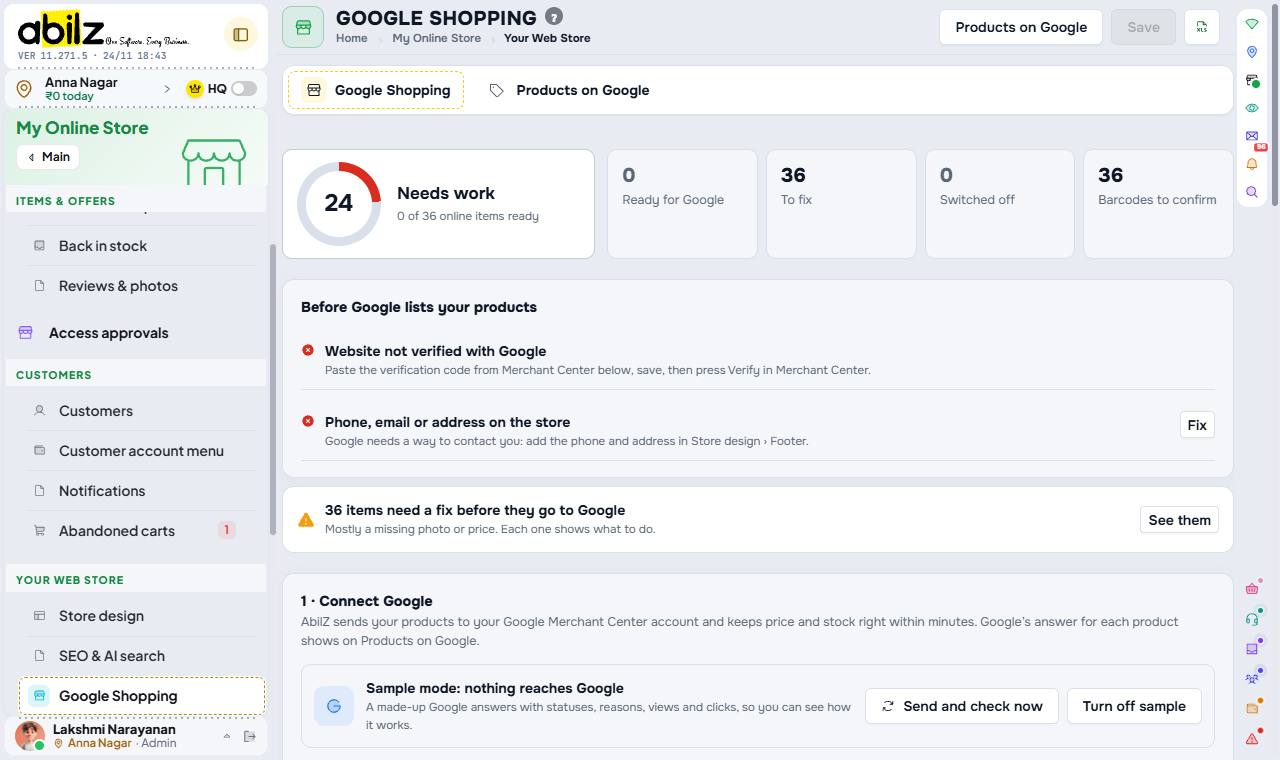
My Online Store › Your Web Store › Google Shopping (setup) and Products on Google (each item). The setup page is for the store's main location; a joined location sees Products on Google for the items it sells.
Only online items go. An item goes to Google only when it is switched on in My Online Store › Items & offers › Items Online. Items sold only at the counter never go.
Set it up once (about 15 minutes):
- Connect Google (step 1 on the page): sign in with the Google account of your Merchant Center (free at merchants.google.com). AbilZ then sends your products itself and keeps price and stock right within minutes; the feed link is not needed. Until AbilZ's Google sign-in is ready, Try with sample data shows every page working with a made-up Google (marked Sample mode; nothing reaches Google; Turn off sample removes it).
- Look at the score. It shows how ready the store and the items are. Fix what "Before Google lists your products" asks: the store must be open, have a phone or address and a return policy, and be verified with Google.
- Without connecting: copy the feed link. In Google Merchant Center (merchants.google.com, free, with the shop's Google account): add the store's website, then Products › Add products › Add products from a file › Add a file link, paste the link and pick Daily.
- Verify the website. In Merchant Center choose "Add an HTML tag", paste the tag (or only its code) in Website verification code, Save, then press Verify in Merchant Center. It is the same code as in SEO & AI search.
- Google tag (optional). Paste your G-… tag: every order placed on the store is then counted as a sale in Google, so you see which Google visits became orders.
- Google categories. Pick one Google category for each of your categories; every item in it follows. AbilZ suggests one: Use the suggestions where empty, check them, Save.
Google checks the products in a few working days.
Products on Google:
- Ready: goes in the feed. "Tips to show more" are optional (a description, a brand, the barcode).
- To fix: stays out of the feed until fixed. Mostly no photo, or no price. The row says why; the pencil opens the details with what to do.
- Off Google: you switched it off. It stays on your online store; only Google stops showing it (within a day).
- Barcode to confirm: AbilZ also makes barcodes for items without one, starting with your prefix (890 unless you set another). 890 is also India's real barcode prefix, so AbilZ asks: Yes, maker's (the barcode printed by the maker: Google can match the product) or No (the shop's own: sent without a barcode). Tick many and use Maker's barcode / Shop's own barcode.
- Tick items to switch many on or off Google at once.
- Google category for this item only (in the details) overrides its category's match.
What Google gets: the name (with the brand), the description, the photos, the price including GST (on discount: the MRP as the price and your price as the sale price), in stock or out of stock, brand, barcode, Google category and your category. Each size or colour is its own listing, joined as one product. One store price everywhere: a joined location's own online price is not sent; Products on Google warns about such items, because Google may refuse a product when the store page shows another price.
Delivery: the simple delivery charge goes with each item. With Shipping Pro rules (areas, weights), set your delivery once in Merchant Center › Shipping and returns instead.
A joined location sees the Google status of the items it sells, and can switch its own items (the ones only it sells) on or off Google. Items on the store's common list, the Google categories and the barcodes are changed by the store's main location.
Connected (or sample mode):
- AbilZ sends only what changed every 2 minutes (a sale, a purchase, a new price or photo) and takes away items switched off or no longer online. Send and check now does it at once.
- Google says on Products on Google: Approved, Limited (shown less often, with the reason), Not approved (Google's reason and what to do) or Waiting (Google is checking). Tiles: Google: not approved, Google: limited.
- Views and clicks of the last 30 days, per item and in total.
- Disconnect stops sending; products already on Google stay until removed in Merchant Center.
In stock nearby on Google Maps (step 4):
- Switch on Show the stock at each store. Each store with store pickup on sends its own online stock (after keep-back); stores with pickup off are hidden.
- Give each store the same store code as in its Google Business Profile (AbilZ fills one from the name). In Merchant Center turn on Free local listings and link the Business Profile once.
- Google shows In stock, Limited availability (at or below the low-stock number) or Out of stock, and "Pick up today".
- Without connecting, add the stock file link too (Products › Add products › local inventory, daily).
- A tap on a store listing opens the product with Pick up here at that store already chosen at checkout.
Shoppers from Google pay the price Google showed: for the whole visit after a Google link, the store shows and charges the one store price, also when they pick up at a location with its own online price. Other visitors still pay that location's price.
Something wrong in this guide?
