

Design My App has three tabs (Design, Features, Look & icon), with Get the app bar and QR codes next to it.
My Online Store › Your Mobile APP › Design My App. The page has three tabs: Design, Features and Look & icon. Get the app bar and QR codes are tabs at the top of the page (My Online Store › Your Mobile APP › Design My App › Get the app bar and › QR codes). The app's numbers moved to Reports › Online › Online reports (the My Online Store Report tab). If you leave Design with changes not saved, AbilZ asks first.
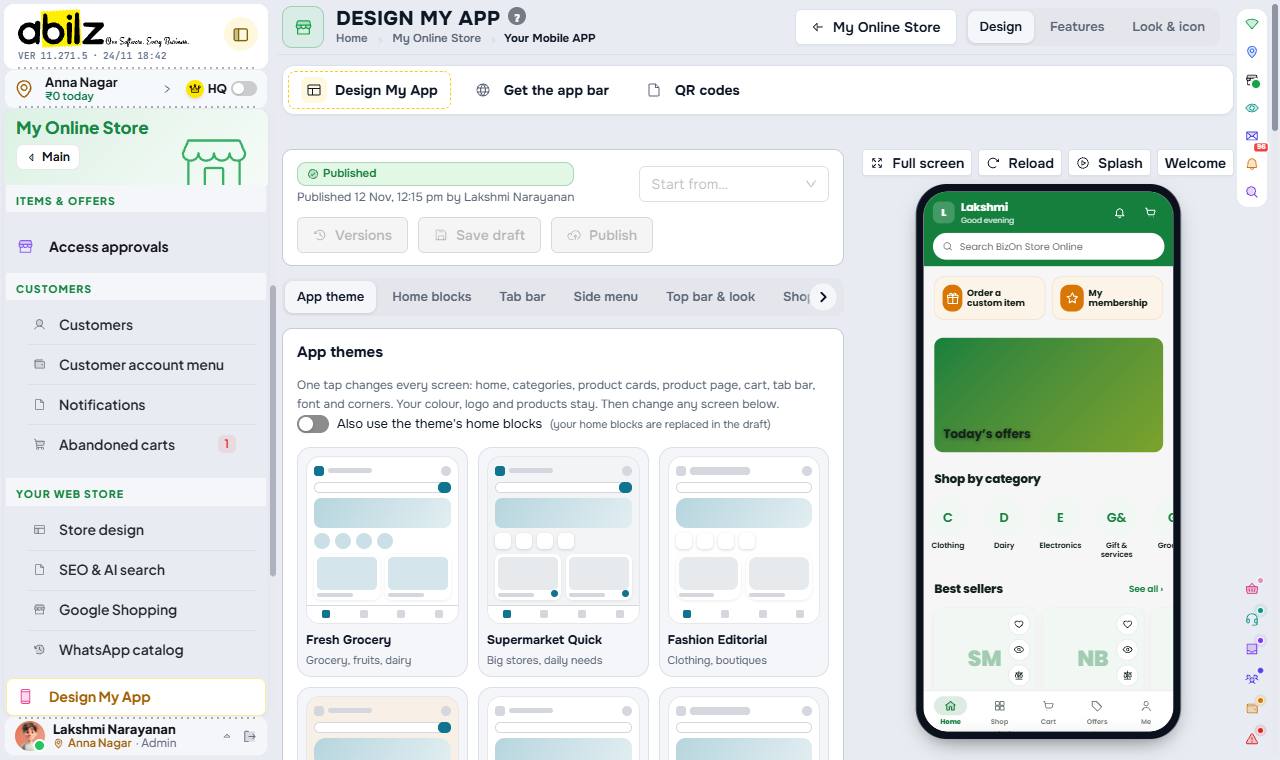
- Design (v7.12): the installed app gets its own layout, apart from the website. On the right is the real store in a phone, showing your draft as you change it. The whole phone always fits on the screen; Full screen shows it large (Esc or a tap outside closes it). Tap around in it: it works like the app.
- Start from… gives three templates (Shopping app, Quick delivery app, Catalogue app), or Copy the website home.
- Home blocks: drag a block to move it, or use the arrows. Tap a block to change it. The app has every website block, plus Picture slider (up to 6 pictures that slide every 4 seconds) and Buy again (the signed-in customer's earlier items).
- Tab bar: the bar at the bottom, with 2 to 5 tabs in your order. Choose from Home, Shop, Categories, Offers, Cart, Orders, Account and WhatsApp, and rename them if you like.
- Top bar & look:
- top bar: logo, name or both; a search bar or a search icon; app colour, light or dark; the cart button; a greeting on Home.
- look: product cards (small, big pictures or list), buttons, corners, font, and a dark look (off, follow the phone, or always).
- Welcome & splash:
- welcome slides: up to 4, shown once when the app first opens. The last one can turn on notifications in one tap.
- splash: your logo with a movement while the app opens.
- Show in the phone and Play it let you see them.
- Icon shortcuts: up to 4 links that show when a customer long-presses the app icon (Android).
- Save draft keeps your changes. Publish puts them on every phone the next time the app opens. Versions brings back one of the last 10 published designs as the draft. Until the first publish, the app looks like your website.
- Features: the extra screens for your kind of business, each with a switch (see Your app fits your business by itself).
- The app's numbers (in Reports, My Online Store Report): installs, app opens, people, notifications allowed and opened, and orders and sales from the app, by day for 7, 30 or 90 days, and the pages opened most in the app.
- Profile and footer (v7.16):
- The footer menu of every new app design is Home, Shop, Cart, Offers, Me. Rename any tab in Design › Tab bar; inside the screen the title stays My account.
- My profile: the customer adds a photo (choose one or take a selfie; it is made square and small on the phone), name, email, gender, favourite store and special days. Delete my account is always inside, because app stores ask for it. The request shows as a red tag in My Online Store › Customers › Customers, where the store removes the account.
- Share the app with friends: opens the phone's share sheet with the store's app link.
- The bottom of My account shows a line, Powered by AbilZ with the logo, and the app version (1.<number of publishes> · date).
- Design › My account menu: the look of the top (Simple or Colour banner) and switches for My profile and Share.
- More control (v7.15):
- Design starts right under the title bar.
- Design › My account menu: a switch for every row of the app's My account (points card, Scan, My QR, Shop bills, Coupons, Special days, orders, wishlist, addresses, offers, save a bill, notifications, check in, Our stores, WhatsApp, call, returns, delivery, about, privacy). The phone shows My account with a sample customer.
- My Online Store › Customers › Customers has tabs for the app: Installed the app (who, phone, installed, last opened, notifications, orders from the app, a WhatsApp button), Frequent in the app (days in the last 30), Special days (birthdays and wedding days, next first, with a Wish button), Bill feedback (stars and words per bill; unhappy ones also reach the approvals inbox).
- My Online Store › Customers › Abandoned carts: signed-in customers who left items more than 30 minutes ago, with the value. Remind sends a free phone notification (or WhatsApp); Remind all with the app reminds everyone who can get one.
- QR codes (a tab of Design My App): the counter QR, a check-in QR for each store, and a Save a bill QR, each to print.
- In the app: Our stores (address, open now, hours, Directions on Google Maps, call, WhatsApp), My special days (a friendly page for the birthday and wedding day; Customer Connect sends the wishes), and on each shop bill the return days left and stars and words for that visit.
- The app look (v7.14): when opened from the home screen, the store looks and works like a native phone app:
- every screen has a top bar with its title and a back button;
- the frosted tab bar hides on product, checkout and order screens;
- screens fade in, everything tappable gives a press feedback and the phone vibrates lightly;
- white cards on a light grey screen; quick view and the cart open as bottom sheets;
- the buy bar stays at the bottom of a product; shimmer while loading; empty screens say what to do next.
- My account is the hub: name and level, points with progress to the next level, four buttons (Scan, My QR, Shop bills, Coupons), then the lists Shopping (orders, shop bills, wishlist, addresses), Rewards (card, coupons and gift cards, store offers, save a shop bill), App (notifications, scan and check in), Help (WhatsApp, call, returns, delivery, about, privacy) and Sign out. Each list opens as its own screen.
- New templates use the tabs Home, Shop, Offers, Cart, My account (My card and Scan are inside My account and can still be added as tabs).
- For customers (v7.13):
- My card (/card): the customer's own QR (their mobile number) for the counter, their points and what they are worth, their level, how much more to spend for the next level, and the points history. It also has quick links to Scan, My bills, Coupons and Offers.
- Levels are set in Look & icon › Customer levels (Silver from ₹0, Gold from ₹10,000, Platinum from ₹50,000 a year by default). A level counts what the customer spent in the last 12 months, at the counter and online.
- Scan (/scan): the phone camera reads:
- a store's check-in QR, which checks the customer in and shows today's offers;
- a product barcode, which opens the product;
- a bill's barcode or number, which opens Save a bill.
- QR codes work on every phone. Barcodes need a phone that can read them (Chrome on Android); otherwise customers tap Type a number. The camera needs the store's https address.
- Save a bill (/claim): a counter bill of the last 7 days made without the customer's number. They type the bill number and total from the receipt, and the bill goes to their account with its points. A bill already on another customer is refused.
- Check-in QR for each store: in QR codes, print one for each door or counter. Old location QRs (/app?…&checkin=1) still check customers in.
- Tab bar: two new tabs, My card and Scan. The templates now use them.
- Account has a My card link at the top.
- App-only offers: in My Online Store › Items & offers › Offers & coupons, switch on Only in the app. The offer then works only for orders placed in the installed app. On the website it shows "Only in our app", and the code there says to get the app.
- Look & icon: the app name, the short name under the icon (12 letters at most), the icon and the colour. The phone on the right shows the home screen, the opening screen, the app and the Get the app bar as you change them.
- Icon: upload a square picture of 512 × 512 or bigger. Keep the logo in the middle: phones round the corners. Without an icon the store logo is used.
- Colour: the store design colour, or pick one. Opening screen: the app colour or white.
- Get the app bar and QR codes:
- Get the app bar: a slim bar at the bottom of the store on phones. Choose when it shows: after an order, on the second visit, after Add to cart. It never shows on a computer or inside the app. After the customer taps ✕ it stays hidden for 7, 14 or 30 days.
- Inside WhatsApp or Instagram installing does not work, so the bar says Open in Chrome (Android) or Open in Safari (iPhone).
- QR for the counter and the door: print it or download it. Scanning it opens the store with the bar at once.
- Installs: how many phones installed the app and allowed notifications, Android and iPhone.
Was this helpful?
Something wrong in this guide?
Still stuck?Press ? in your portal, then Raise a ticket. It carries the page you are on.
Contact AbilZ