

Side menu: Design My App › Design › Side menu.
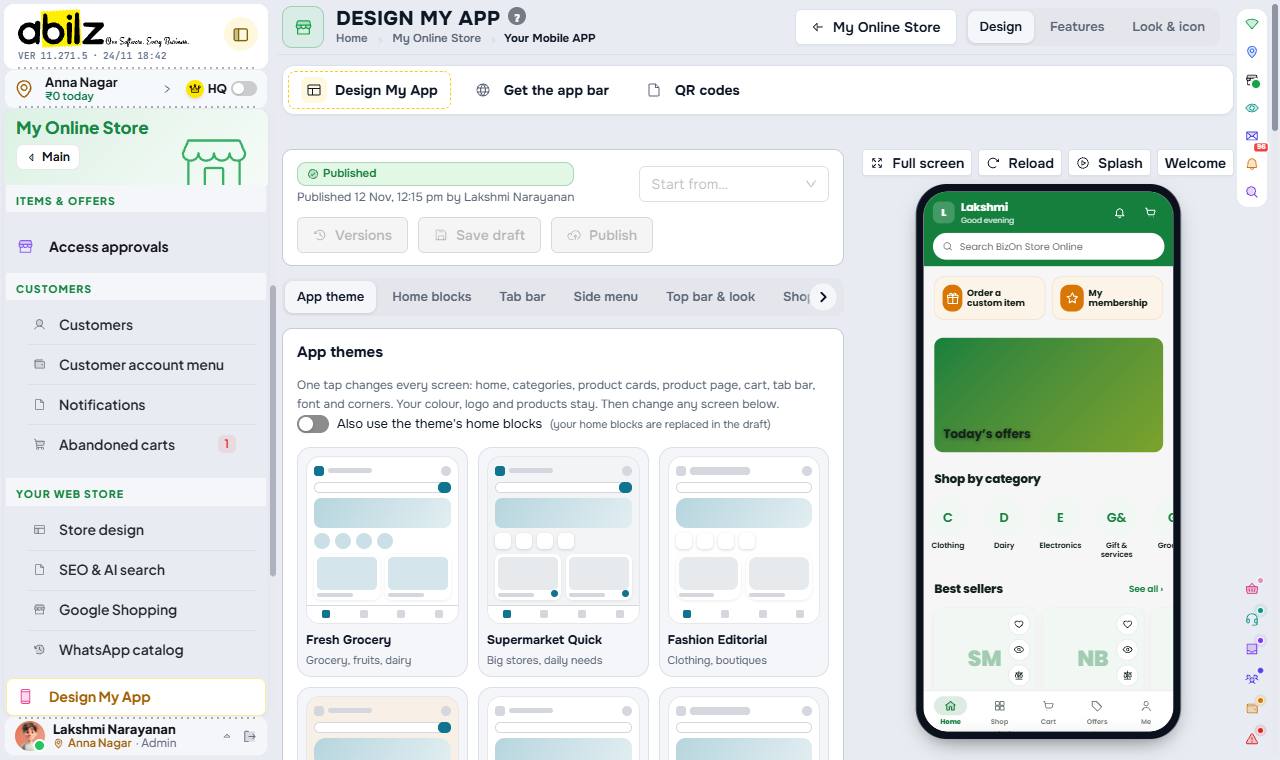
- Side menu: Design My App › Design › Side menu. Switch it on and a ☰ button shows on the app's top bar; customers can also swipe from the left edge. Pick one of 8 looks (Simple list, Profile first, Cards, Icon grid, Colour menu, Dark menu, Big banner, Category menu), then the top of the menu, the categories (list or chips), a wider menu, and the store hours and phone at the bottom. Switch each row on or off and drag it into order: Home, Shop, Offers, My orders, Wishlist, My card, Our stores, About, Contact, WhatsApp, Call, Share the app, policy pages and more.
- Checkout: Design My App › Design › Checkout. The app now has its own checkout made for phones: a step bar (Three steps) or one page, Delivery and Pick up as two big cards or a switch, saved addresses as cards, the delivery time as chips, payment as tiles with icons, the order folded with its pictures, a clear bill, safe-shopping badges, and the total with Pay or Place order always at the bottom. Five ready looks: One page, Three steps, Quick, Food order, Classic. Payment ways, charges, offers and coupons still come from your store settings. The website checkout does not change.
- More templates: 34 app themes (14 new, some turn on the side menu or a checkout look), 30 tab bar templates (14 new: Dark bar, Neon glow, Outlined card, Soft tint, Wave top, Rounded square, Name tag, Lift up, Square dock, Square centre button and more) and 7 Start from layouts (new: Deals app, Services app, Food menu app, Simple app).
Was this helpful?
Something wrong in this guide?
Still stuck?Press ? in your portal, then Raise a ticket. It carries the page you are on.
Contact AbilZ