

Made to order › Custom orders is the list of orders, with a work board and the order on the online store.
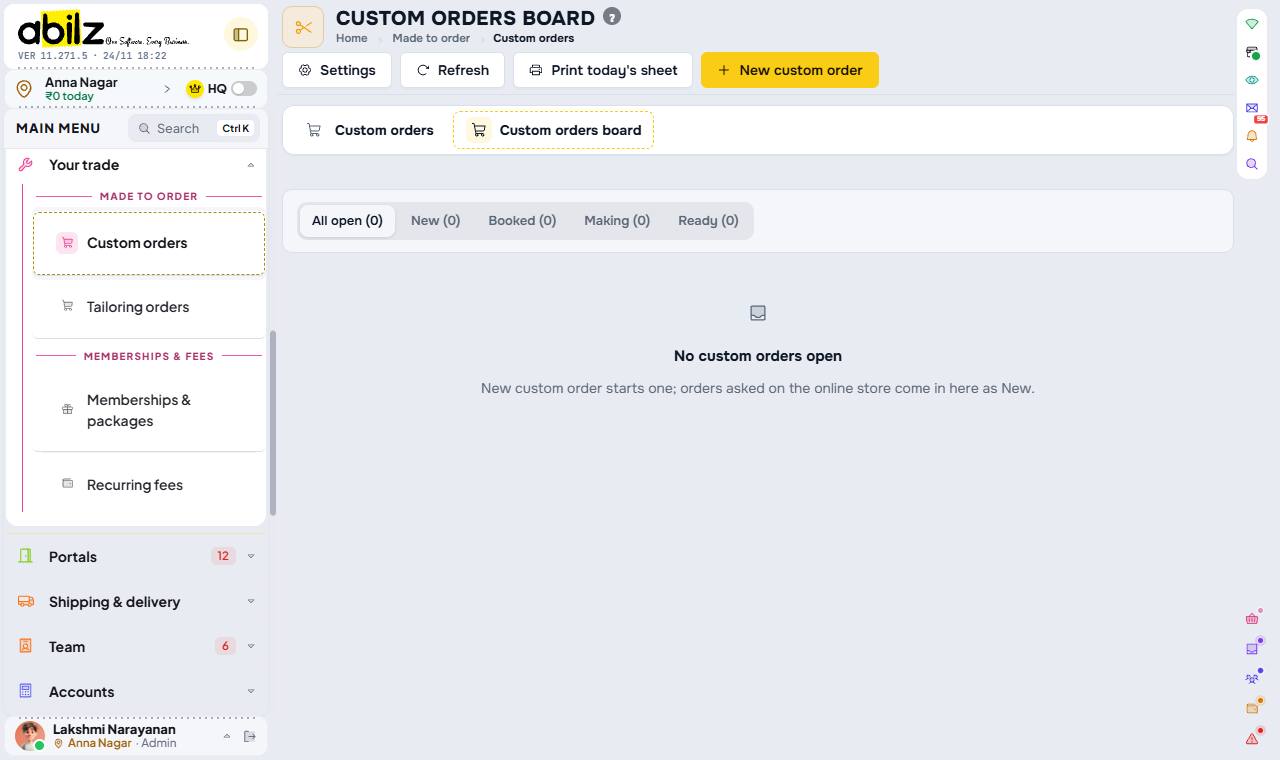
Your trade › Made to order › Custom orders is the list of orders; its Custom orders board tab is the work board. When it is your only trade menu, the menu is called Made to order.
Taking an order (New custom order):
- the customer;
- what to make, as lines with price and GST;
- Needed on and the time;
- pickup or delivery (with the address);
- the words on it (for a cake or a card);
- design notes;
- who makes it;
- Advance to ask (₹).
The steps:
- New: the order is written down (or came from the online store).
- Confirm order · send to the customer:
- it needs a price and a date;
- it moves to Booked;
- WhatsApp opens with the confirmation: what, when, the total, the advance and the customer's status link.
- Take the advance with Payments on the order (or the customer pays from the status link).
- Start making → Mark ready: WhatsApp tells the customer it is ready and the balance to pay.
- Delivered · make the invoice: a GST invoice for the full amount with the advance already on it. Take the balance and confirm it.
You can also:
- Send the confirmation again;
- Send a reminder when it is ready;
- Cancel an order (only if no advance was paid; refund it first).
The work board groups open orders by the day they are needed: Overdue (red), Today, Tomorrow, This week, Later. Each card shows:
- the time and what to make;
- the words on it;
- pickup or delivery;
- whether it came online;
- whether there is a design photo;
- the money still to take.
Print today's sheet prints overdue, today and tomorrow for the kitchen or workshop.
The customer's status page (the link in the WhatsApp messages) shows:
- the steps (Received, Confirmed, Being made, Ready, Collected / Delivered);
- what is made, when, and the words on it;
- the total, paid and advance to pay, with a Pay button (UPI or card).
On the online store (My Online Store › Setup › Store settings, Custom orders on the store; the location the store sells from needs the module):
- A Custom order link at the top opens a form: what, details, how many, the words on it, a design photo, the date (from today plus the days you need), the time, and pickup or delivery.
- It comes in as a New order on the board (marked online). Your WhatsApp alert numbers get a message.
- Set the price and confirm: the customer gets the link to pay the advance.
Something wrong in this guide?
