

Bill a customer at the counter: add items, pick the customer, take the payment and print or send the receipt.
Point of Sale [POS] › Sell [POS Register]. The register opens on a computer or tablet. On a phone, bill in the AbilZ app instead.
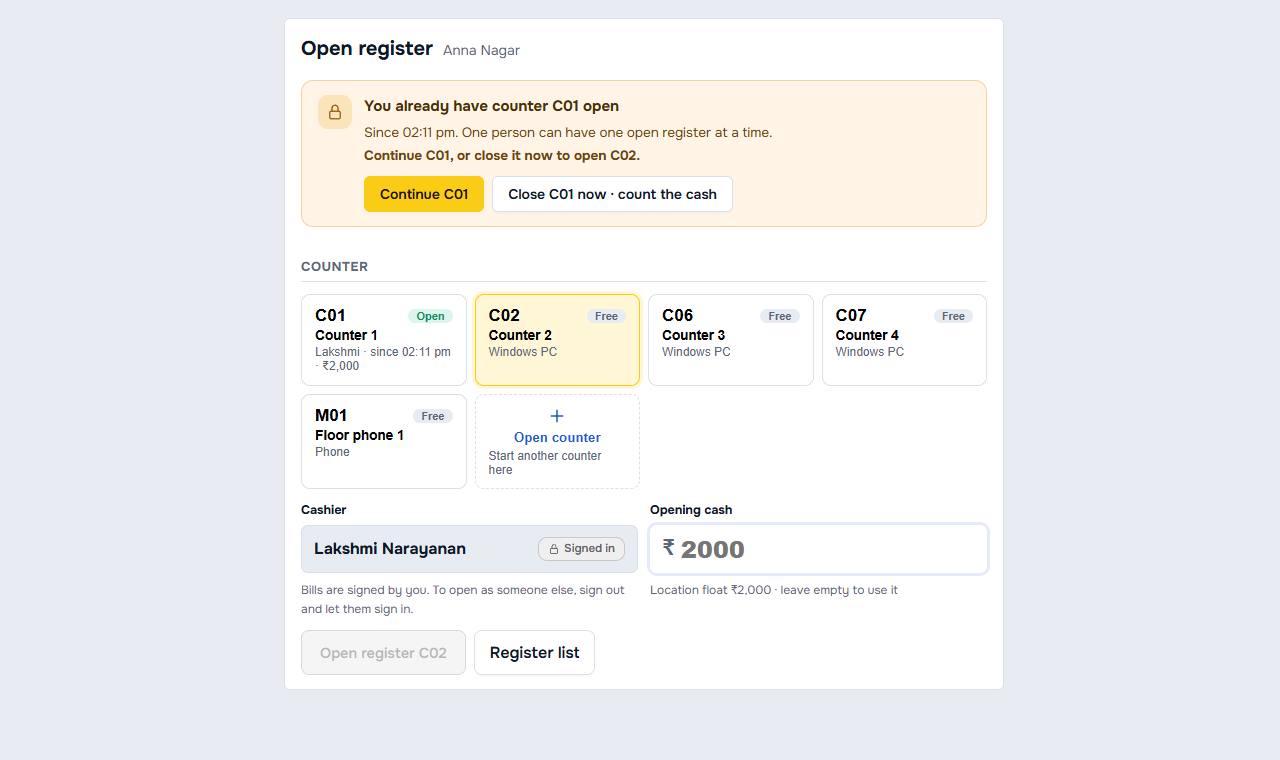
- Open the register: pick your counter and start with the cash in the drawer. If the counter is already open, press Continue.
- Add items: scan the barcode, or type the name or code in the search. Each scan adds one more. Change the quantity or price on the line when allowed.
- Customer: type the mobile number to pick the customer, or add a new one. Their points, store credit, dues and their own coupons show by themselves.
- Discount and coupon: use Discount for a bill discount, Coupon to type or scan a coupon code. Offers that fit apply by themselves.
- Pay: choose the payment mode (cash, UPI, card…). Cash shows the change to give back. A bill can be split over more than one mode. Pay later puts it on the customer's account.
- The bill is saved and the receipt prints or goes to the customer by message.
Good to know
- The Point of Sale [POS] menu: Sell [POS Register]; Bills (Counter bills, Returns & exchanges, Kept items (Keep-aside)); Counters & staff (Registers, with UPI tally as a tab, Floor sales (staff carts), Training log); Missed sales (Lost sales).
- Works offline: bills are saved on the device and sent when the internet is back. Each bill keeps its own number, so it is never saved twice.
- Returns and exchanges: from Point of Sale [POS] › Bills › Counter bills, open the bill and return items; the price paid comes back, never more.
- Hold a bill to serve the next customer, and open it again later. Keep aside keeps items for a customer who will come back.
- Keyboard shortcuts: press F1 on the register, or Keyboard shortcuts on Settings › Selling & POS › POS settings.
- Lock screen (in your account menu) locks the register when you step away.
- At the end of the day, close the register and count the cash. See Counter money.
Was this helpful?
Something wrong in this guide?
Still stuck?Press ? in your portal, then Raise a ticket. It carries the page you are on.
Contact AbilZ