

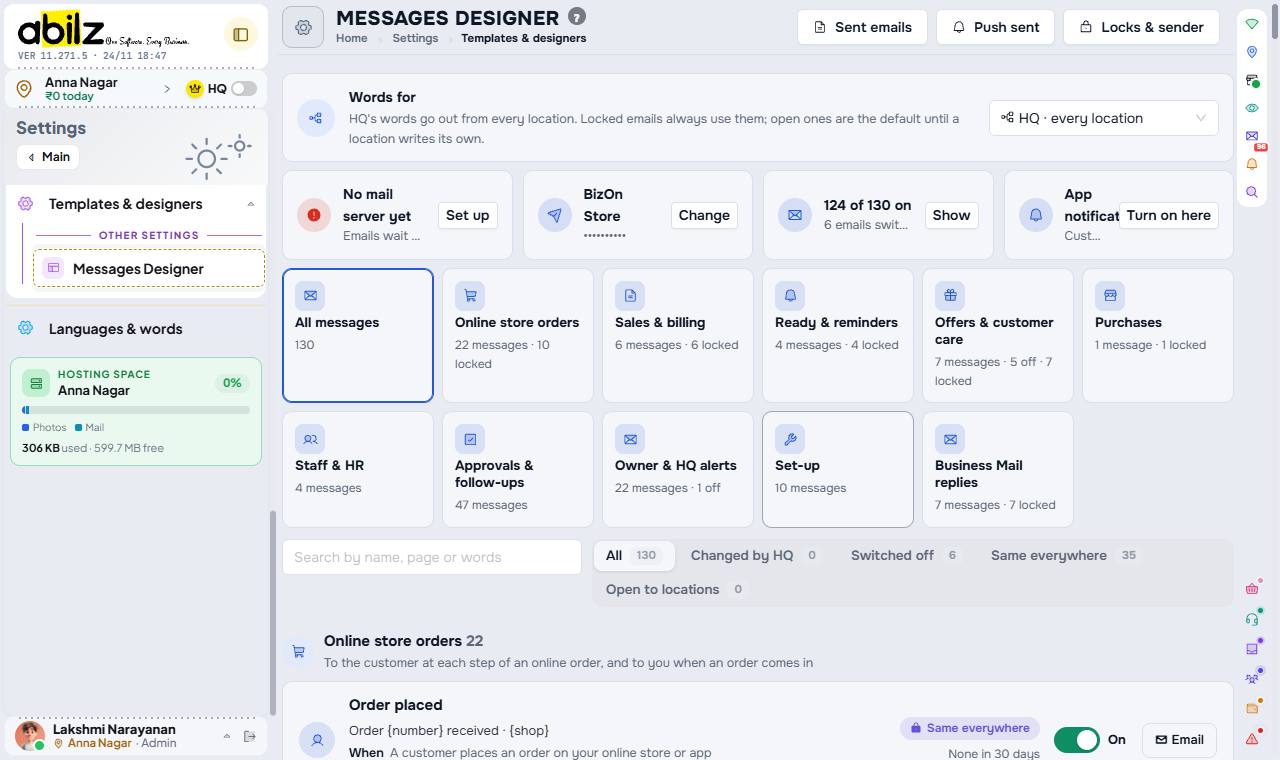
The page is now the Messages Designer: every event shows its Email and App buttons.
- To customers (Customer Shopping App): order steps, ready, wishes, rating link, we miss you, back in stock, cart left. Open App to change the title and text. {title} and {text} are the update the software writes; write your own words around them.
- How it is sent: App only / App first, WhatsApp if not reached / App and WhatsApp / Off. App first saves WhatsApp costs. It is the same setting as My Online Store › My app.
- To staff (new): new online order, custom order request, deliveries assigned, approval waiting, recurring purchase order ready, quotation follow-up, low Google review, low customer ratings, licence warning, message from AbilZ, AbilZ connection lost, payslip ready.
- Each person turns alerts on once, on their phone (AbilZ app or browser) or PC: Notifications › Turn on alerts on this device.
- HQ › Payments & messages › Messages › Staff alerts: pick which roles get each alert, whether it is urgent (stays on screen until tapped), and switch it on or off. Staff get alerts for the locations they work at; the owner gets them all.
- Approvals, follow-ups, licence warnings and AbilZ messages reach phones within about 2 minutes. New online orders, custom orders, low reviews, payslips and deliveries go at once.
- Send test to my devices shows the notification on your own phone or PC.
- A detail an event does not have is left out, never shown as {name}.
Was this helpful?
Something wrong in this guide?
Still stuck?Press ? in your portal, then Raise a ticket. It carries the page you are on.
Contact AbilZ