

HQ's words go out from every location. HQ decides which emails a location may change, and the Messages Designer lists every email the software sends.
- HQ's words are what every location sends. Only HQ Admin changes them.
- HQ › Payments & messages › Messages decides, for each customer or supplier email:
- Same everywhere (the default): every location sends HQ's words. A location sees Set by HQ.
- Locations can change: HQ's words stay the default. A manager with Settings Edit can write their location's own words, or switch the email off for their location only.
- Lock or open one email, a whole group, or all at once. The page shows which locations wrote their own words. Use HQ's removes them.
- When HQ locks an email again, the location's words are kept but not used. They come back if HQ opens it again.
- Always HQ: emails about your business (alerts to the owner, staff emails, set-up, new-order alerts to HQ) are always HQ's words.
- The same page has Sender & footer (who emails come from, the HQ Admin email, the footer, the test address) and Mail servers.
- In the Messages Designer, Words for picks HQ or one location. A location shows HQ words, Location words or Set by HQ on each email.
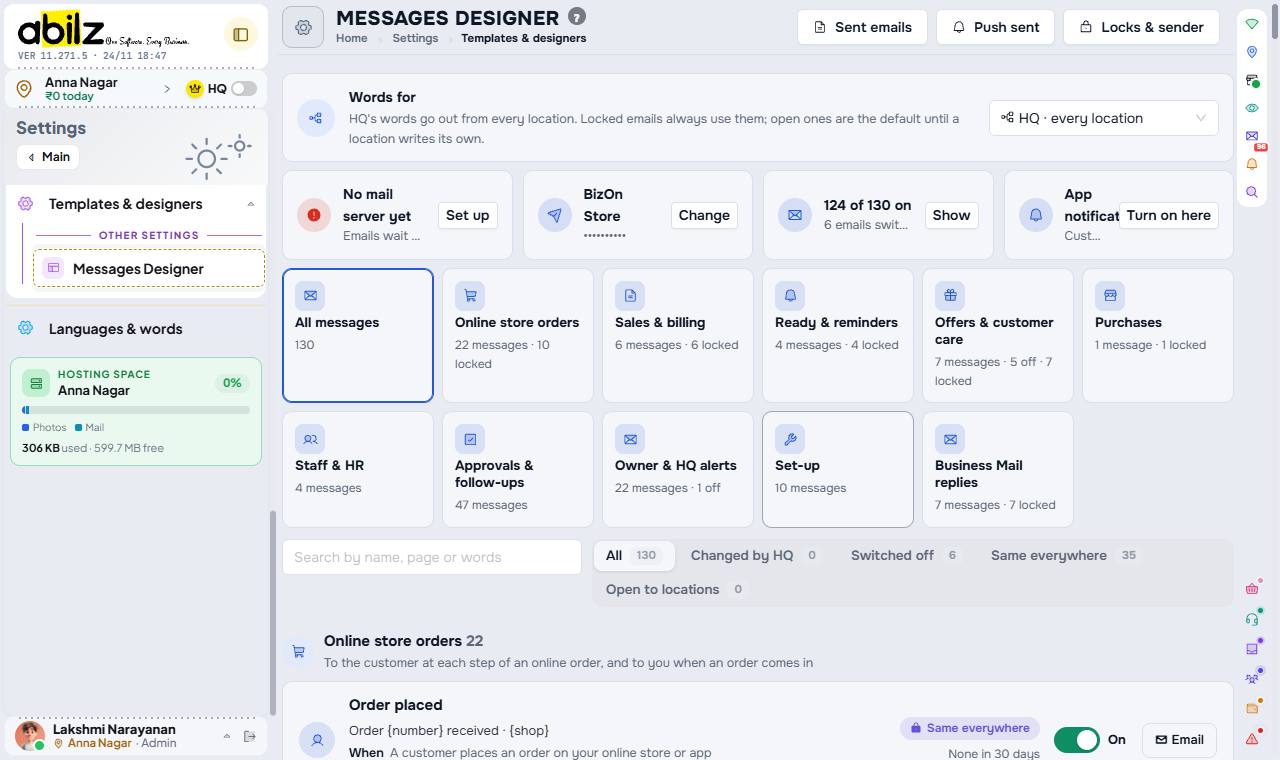
Settings › Templates & designers › Messages Designer lists every email and app notification the software sends, to customers and to your staff, in these groups:
| Group | What is in it |
|---|---|
| Online store orders | To the customer at each step: order placed, accepted, packed / out for delivery, ready for pickup, delivered, cancelled, return answered, quotation ready, review published, cart left. To you: new online order, new custom order request. |
| Sales & billing | Invoices and other sales documents, the counter receipt and estimate, recurring fee invoices, payment reminders, bounced cheques. |
| Ready & reminders | Takeaway food ready, table ready, job work or medicines ready, vehicle service reminders. |
| Offers & customer care | Birthday and anniversary wishes, rating link, we miss you, back in stock, visit follow-up offer. |
| Purchases | Purchase orders and other documents to suppliers. |
| Staff & HR | Sign-in code, new staff login, new password, payslip. |
| Owner & HQ alerts | New location, invoice due, payment receipt, credit, licence ending, daily sales, low stock, Z report, today's sale, low Google review. |
| Set-up | The mail-server test email. |
| Business Mail replies | The reply templates and the signature people pick when they answer a mail in Business Mail. |
Each row shows:
- When it is sent.
- From which page.
- To whom it goes.
- Also sent by: what goes with it, for example WhatsApp or an app notification.
- How many went in the last 30 days.
To change an email: open it, change the Subject and the Message, and press Save.
- Tap a detail such as
{name},{number}or{total}to add it. It is filled in when the email is sent. - In order updates and the other app messages,
{text}is the update the software writes, for example "Your order left the store with BlueDart". Write your own words around it. - A blank line starts a new paragraph.
- Preview shows the email with sample details. Send test sends it to the test address. Reset to default brings back the original words.
When an email goes:
- The business needs a mail server (HQ › Payments & messages, tab Message providers), and the person needs an email address on their customer or staff record. Without either, only WhatsApp or the app message goes, as before.
- Emails to you (new orders, custom order requests, low reviews) go to the HQ Admin email in Sender & footer. The Z report and today's sale go to the owner's email.
- Automatic emails can be switched On or Off on the row. Offers & customer care emails start Off, so customers get them by email only when you want.
- Emails you send by pressing Send (documents, counter receipts) are always on.
- Sign-in code must keep
{code}. New password should keep{password}. - The HQ emails are the same on HQ › Payments & messages › Messages. Only HQ Admin can change them.
- Every email is in Messages › Sent › Sent messages with Sent or Not sent and the reason.
Was this helpful?
Something wrong in this guide?
Still stuck?Press ? in your portal, then Raise a ticket. It carries the page you are on.
Contact AbilZ