

Every extra feature in one place, with its own switch and settings for each location.
Settings › Start here › Features lists the extra features AbilZ has for your shop, grouped by the work: Billing, Cash & shift, Owner alerts, Stock, Purchases & suppliers, Customers, Marketing & WhatsApp, Staff and Payments.
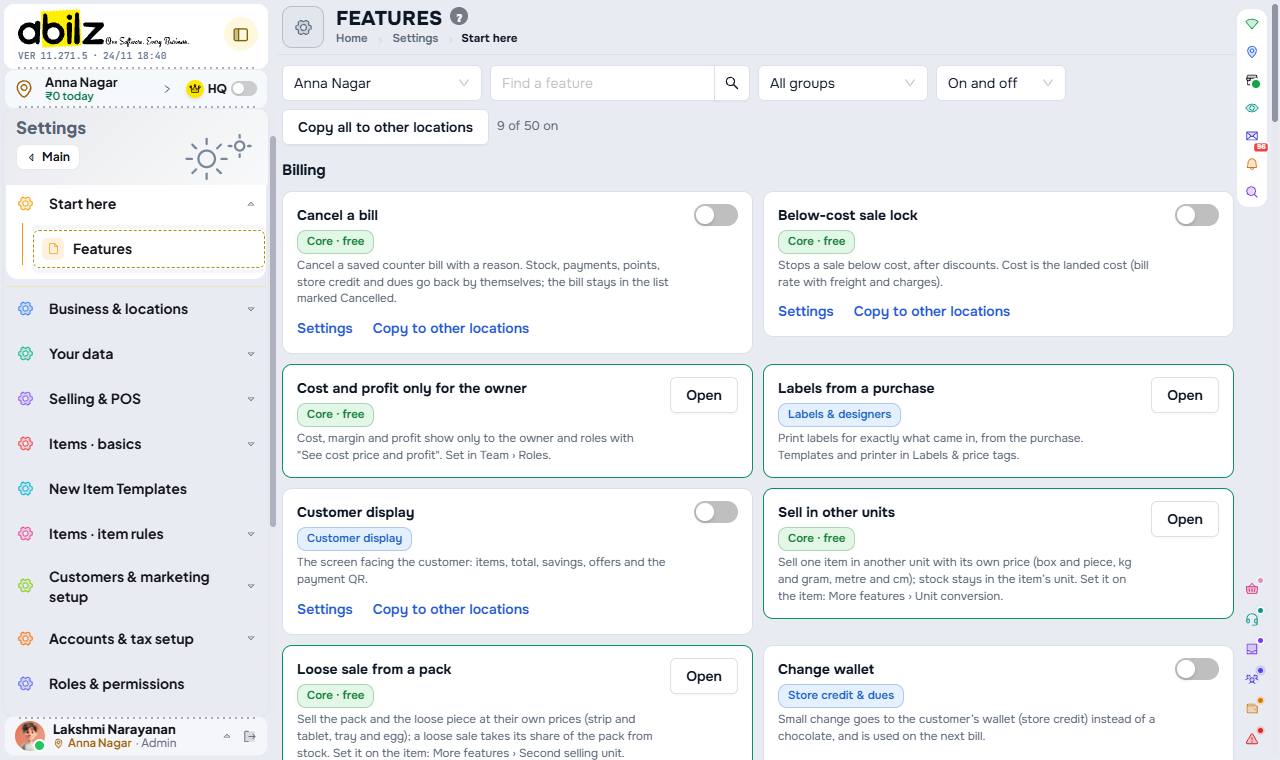
Each feature has its own switch. New features start off. Switch one on and it works at the location chosen at the top of the page. Tap Settings on a card to change how it works (limits, times, messages), then Save.
Core or module. A card marked Core · free works for every location. A card with a module name (for example Owner Alerts or Loyalty points) works only where the location has that module. If the location does not have it, the card says Module not on this location: you can still set it up, and it starts working when the module is added.
Open. Some features were in AbilZ before and keep their settings on their own page (for example Cost and profit only for the owner, in Team › Roles, or Expiry discounts in Items). Their card has an Open button that takes you there.
Copy to other locations. Set a feature once and copy it: Copy to other locations on a card copies that one feature; Copy all to other locations at the top copies every switch and setting. Tick the locations and press Copy. The settings saved at this location replace theirs.
Find a feature. Type in Find a feature, pick a group, or show only the features that are on (or off). The top of the page says how many are on.
Every change is written in the activity log with who made it.
Something wrong in this guide?
