

Switch a language on once and every store can work in it. Each language is free, and anything without a word yet stays in English.
HQ › HQ locks › Languages. Switch a language on once and every store can work in it. Each language is free, and anything without a word yet stays in English.
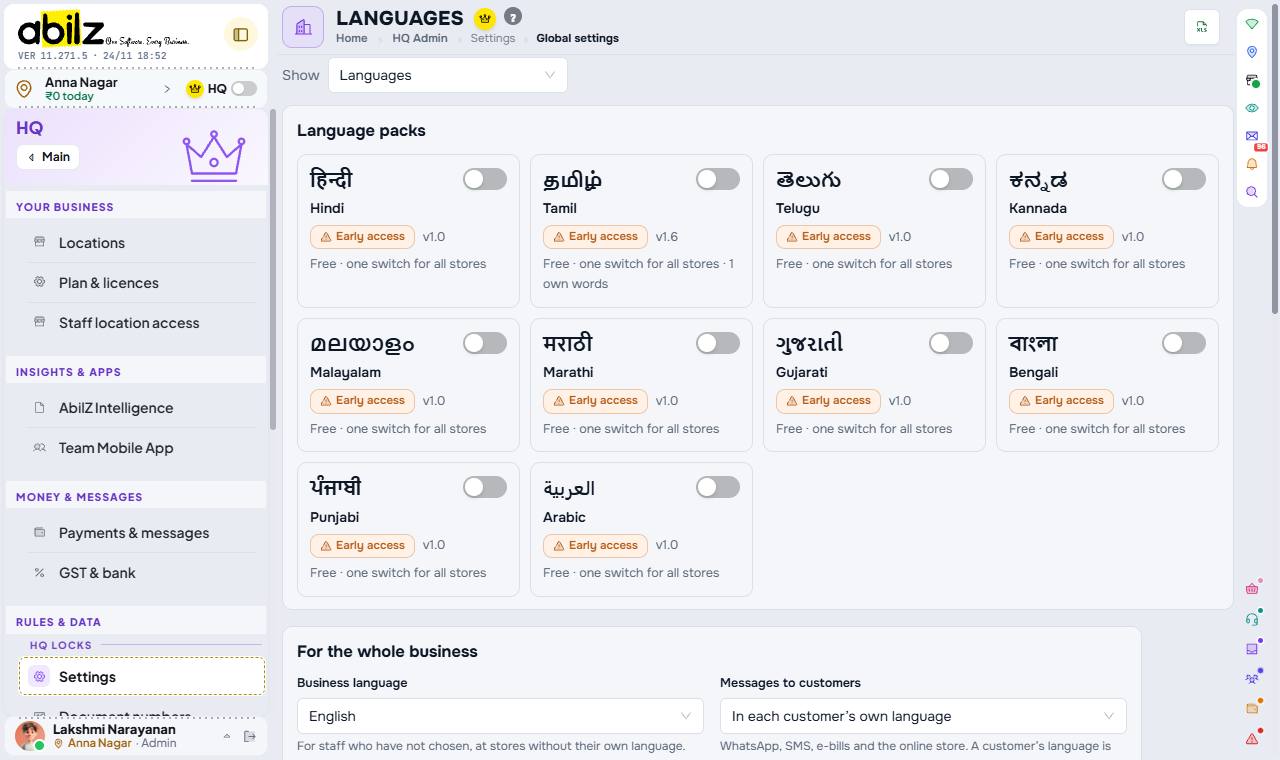
Switch a language on
- Open HQ › HQ locks › Languages.
- Turn on the language you want, for example தமிழ் Tamil or हिन्दी Hindi. It works at every store at once, also stores you open later. There is nothing to pay.
- Choose who sees it (below).
Languages marked Early access work today; a few words may still show in English while AbilZ finishes them. Coming soon languages can be switched on when AbilZ makes them ready.
Who sees which language
- Business language: for everyone who has not chosen their own, at stores without their own language.
- Each store: under Stores, give a store its own language. Staff at that store see it.
- Each person: in the menu, open your name and pick Language. The owner can work in English while the cashier works in Tamil. Turn off Staff choose their own language if everyone should see the store's language.
- Messages to customers: choose whether they go in each customer's own language or in the store's language.
Your customers see it too
- Receipts and the counter: once a language is on, the cashier can switch the counter screen to it, and receipts and e-bills print its words (Total, Paid, Thank you! Visit again.). There is nothing to type. A customer's own receipt language, in their details, comes first. Words you typed under Settings › Languages & words still win.
- Your online store and app: shoppers get a language choice. On a computer it is at the top of the page, on a phone it is at the foot of the page, and in the app it is under Account. A phone set to Tamil opens your store in Tamil by itself.
- The Client Portal: your business customers pick their language at the foot of the sign-in page and their account page.
- Order and service updates: "Order accepted", "Ready to pick up", "Delivered", "Your repair is ready" and the like go in the customer's language: in the app, on WhatsApp and by email. Order numbers stay as they are. Words you typed in the Messages Designer stay as you typed them.
- Item names, categories and your own titles and pages stay exactly as you typed them. To show an item in the local language as well, fill Name in … on the item: shoppers who picked a language see it under the name.
- Tip: to send a Tamil customer straight to Tamil, add ?lang=ta to your store link (?lang=hi for Hindi).
Change a word
- Press Words on a language to see every word: the English, the AbilZ word and Our word. Type your own word and it shows at every store at once. Leave it empty to use the AbilZ word again.
- Edit on the page: press it on a language and any page opens in that language. Tap a word, type the word your staff use and press Save for the business. It changes at once everywhere. Press Done to stop; your own language comes back.
- A store can have its own words too: under Stores, press Words on that store. They work only at that store.
- Use the words people say in your shop. AbilZ sees the words shops change, and a good one can become the word for every shop.
Good to know
- Item names, customer names and anything you typed stay exactly as typed. They are never changed.
- Money keeps ₹ and the usual digits. Native digits (௧௨௩) are an option.
- Switching a language off takes the screens back to English. Your own words are kept for when you switch it on again.
- Only the owner or HQ Admin switches languages on. A store manager can set their store's language and words.
Was this helpful?
Something wrong in this guide?
Still stuck?Press ? in your portal, then Raise a ticket. It carries the page you are on.
Contact AbilZ