

Bring data in from Excel, find duplicates, get back what was deleted, and backups.
Move your data in
Settings › Your data › Move your data in. Bring items, customers, suppliers, opening stock and dues from your old software or Excel. Each list has Import with a sample sheet and a preview; nothing is saved until you press Import.
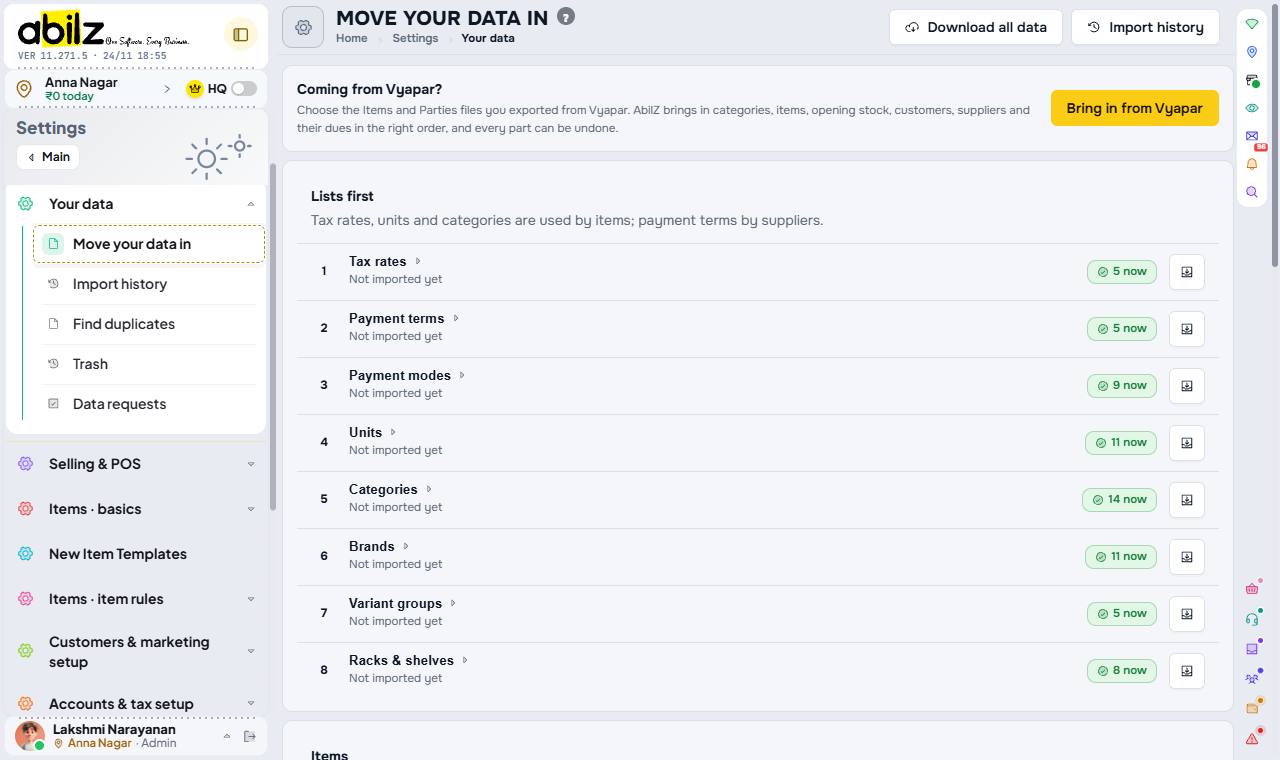
Coming from Vyapar
- In Vyapar, export your Items to Excel and your Parties to Excel (one file each). Only one of them is fine too.
- Here, press Bring in from Vyapar at the top of Move your data in and choose the files. If a file ends in .xls, open it in Excel and save it as Excel Workbook (.xlsx) first.
- AbilZ finds the columns by itself, even when the file starts with your shop name and a title. You see which Vyapar column goes where, how many categories, items, customers and suppliers will come in, and the stock and dues totals.
- Check the totals, tick the box, and press Bring in. Categories come first, then items, opening stock, customers, suppliers, and what customers owe you and what you owe suppliers.
Coming from Tally
- In Tally, Export › Masters (XML). Bring the same file into Customers, Suppliers, Ledger opening balances (every ledger comes, also those with no opening), Items, Opening stock and the dues. Use the openings at the start of the period you will bring.
- In Tally, Export › Day Book (XML) for that period. Bring it into History from Tally: every entry goes into the books with its date, type and number (for example T/PAY/26-27/1).
- A customer's or supplier's line in Tally moves their dues here too. An entry whose debits and credits differ, or one already brought in, is left out and listed. Stock lines are not brought in.
- Compare the Trial balance here with Tally's for the same date. Undo in Import history reverses the whole file.
Import history
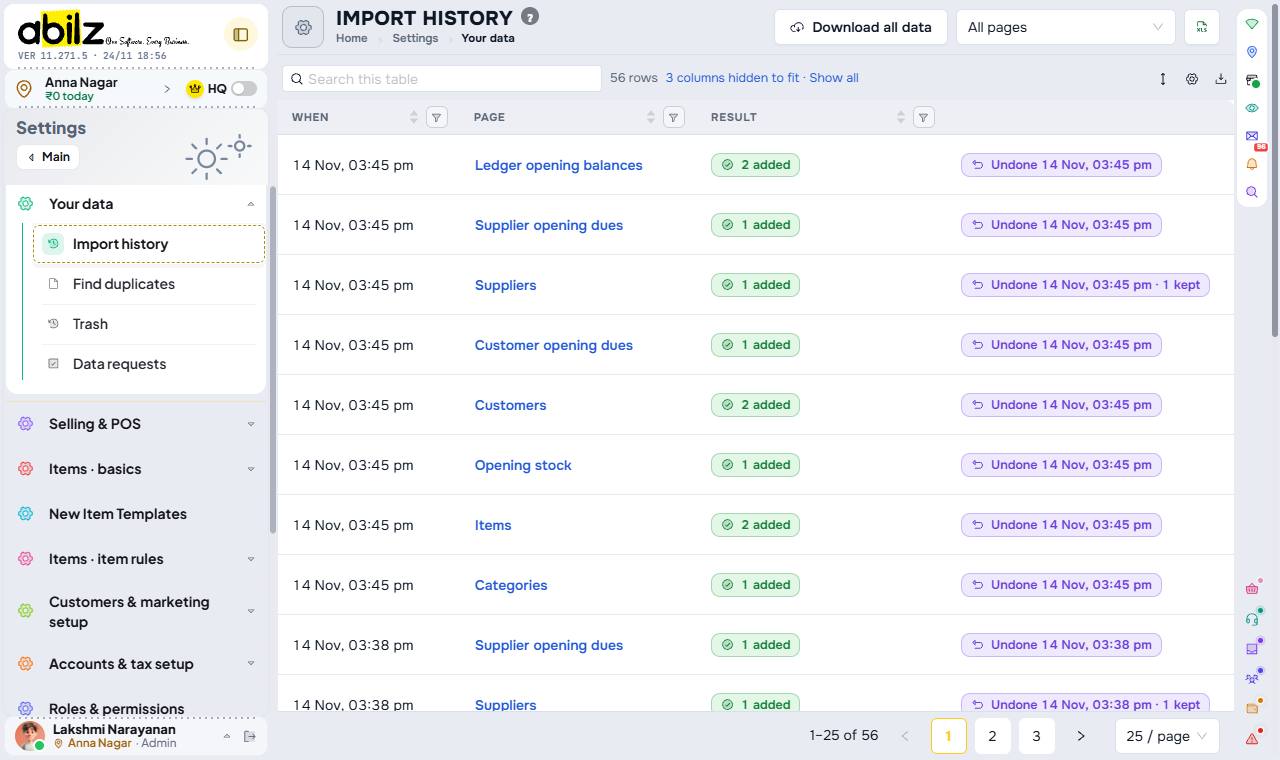
Settings › Your data › Import history: every import with When, the Page, the Result, the File and By whom. An import can be undone from here.
Find duplicates
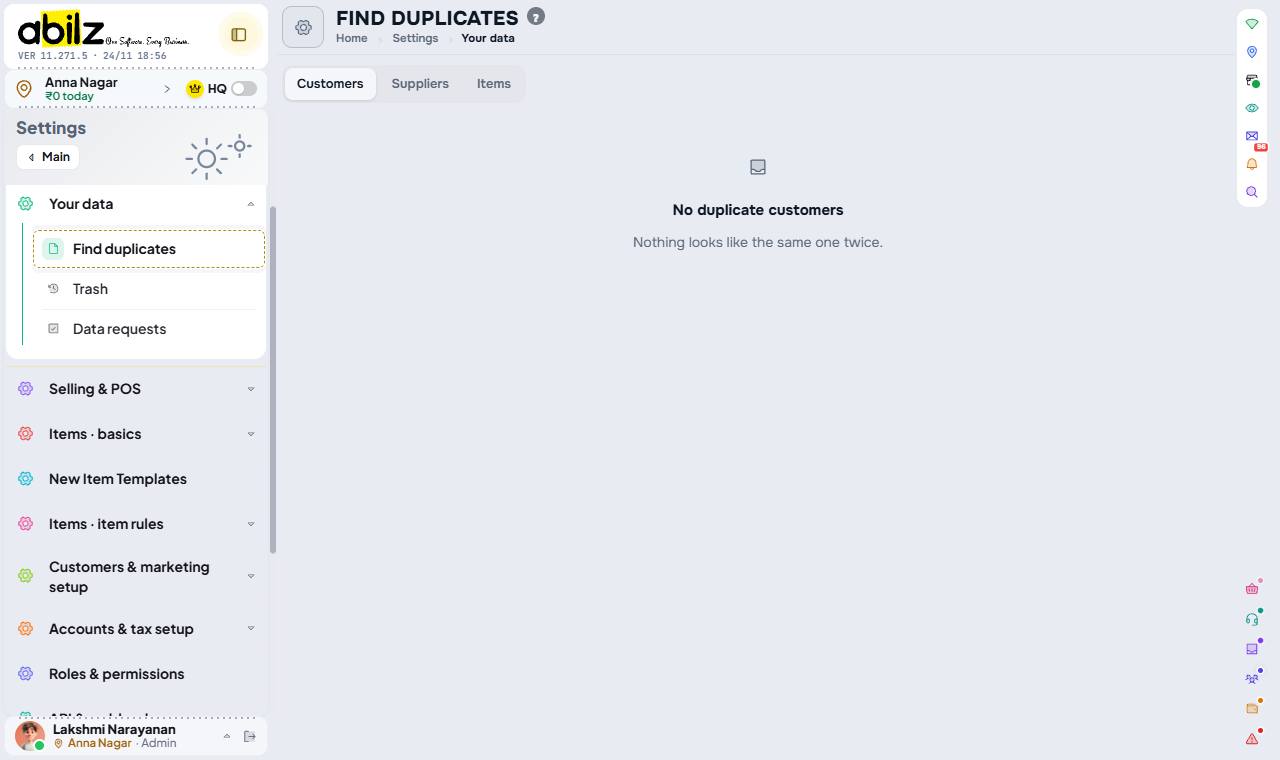
Settings › Your data › Find duplicates: customers, suppliers and items that look like the same one twice. Join them, or mark them as not the same. When nothing is found, the page says so.
Trash
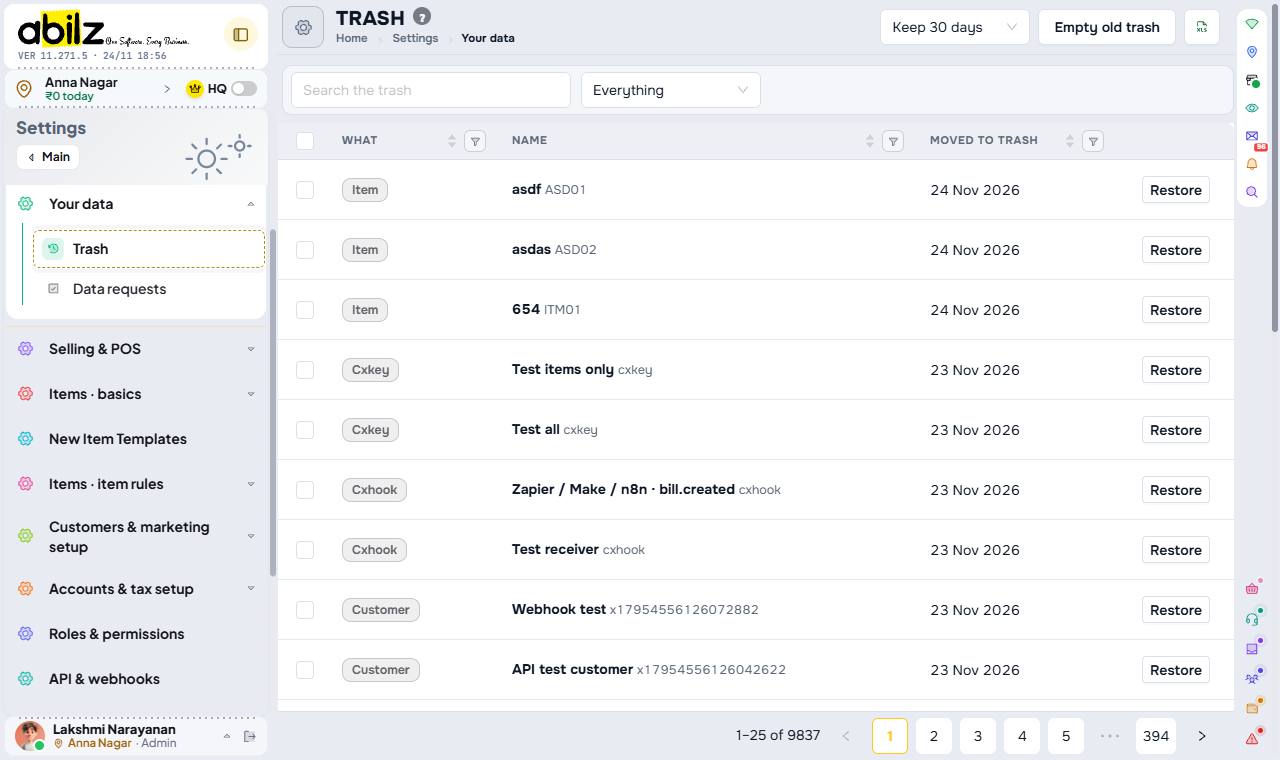
Settings › Your data › Trash. What was deleted stays here for a time you choose (Keep list records in the trash for). Search, tick and Restore, or empty old trash.
Admin console (owner)
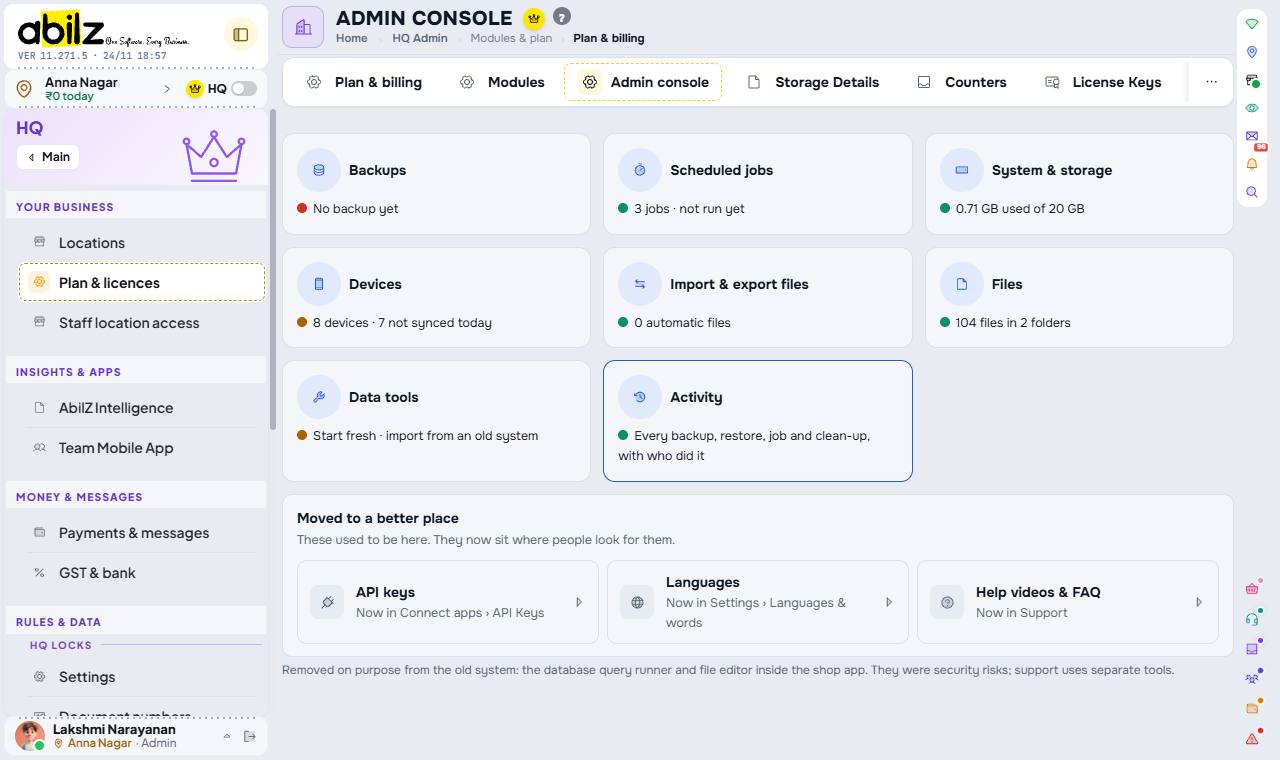
HQ › Plan & licences › Admin console. Owner tools, never seen by shop staff:
- Backups: settings, locations, roles and every list, with counts. Restoring puts settings and lists back; bills and stock are never changed.
- Automatic files: files made on a schedule and sent somewhere, like daily sales to Tally, a stock feed to your website, a customer list to the accountant.
- Start fresh: removes all bills, documents, stock movements, registers and books, for example after training. Items, customers, suppliers and settings stay. A backup is made first, and the owner PIN is needed.
Backup to Google Drive (owner, free)
HQ › Backup to Google Drive. A copy of all your books in your own Google Drive, every day or every week. If anything ever happens, your records are with you.
- Press Link Google Drive and allow AbilZ in the Google window. AbilZ can see only the folder and files it makes in your Drive, nothing else.
- A folder AbilZ backups appears in your Drive with the first copy in it.
- Under When, choose Every day or Every week (and the day), and how many copies to keep. Older copies AbilZ made are removed; your own files in that folder are never touched.
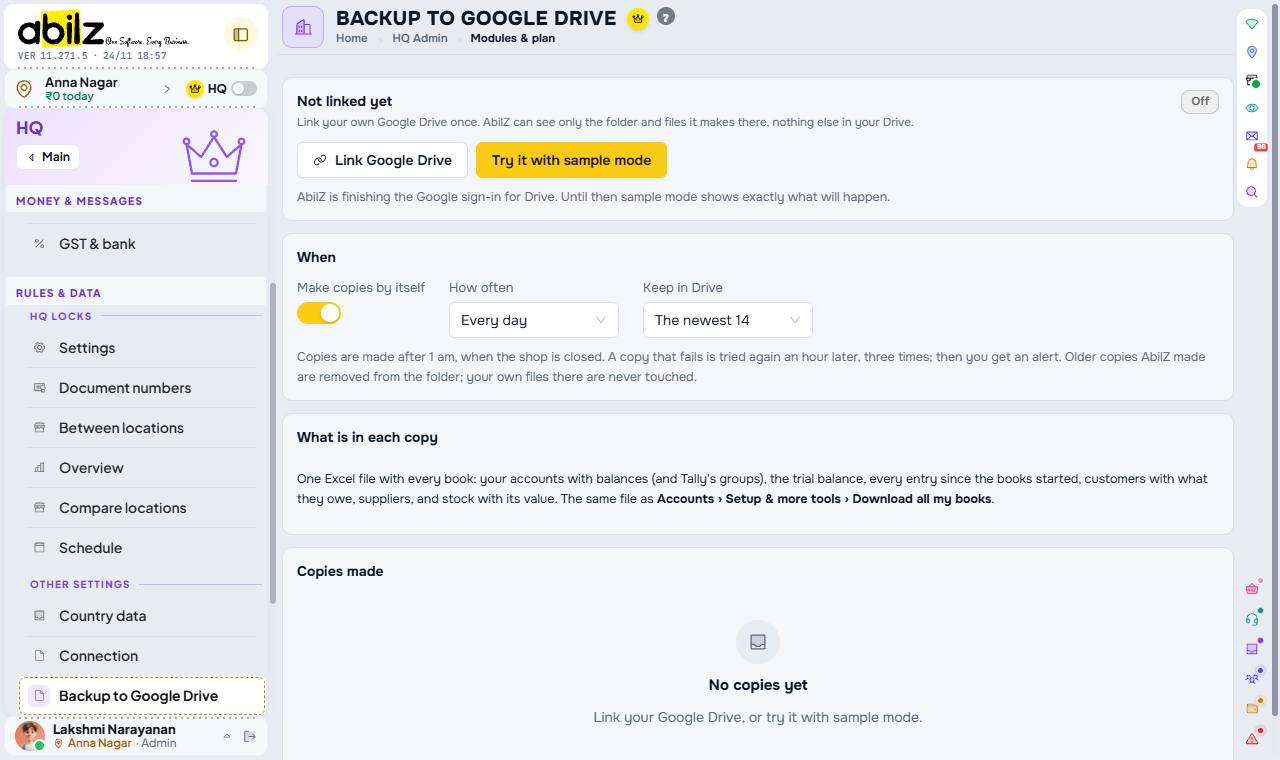
Each copy is one Excel file with every book: accounts with balances, the trial balance, every entry, customers with what they owe, suppliers, and stock with its value. It is the same file as Download all my books on Accounts › Setup & more tools.
Something wrong in this guide?
