

Your item list: photo, type, category, brand, price, GST and stock, with quick tabs, bulk changes, Excel and the trash.
Items › All items. Every item with its price, GST, stock and type. Open an item for its variants, barcodes, prices per location and history.
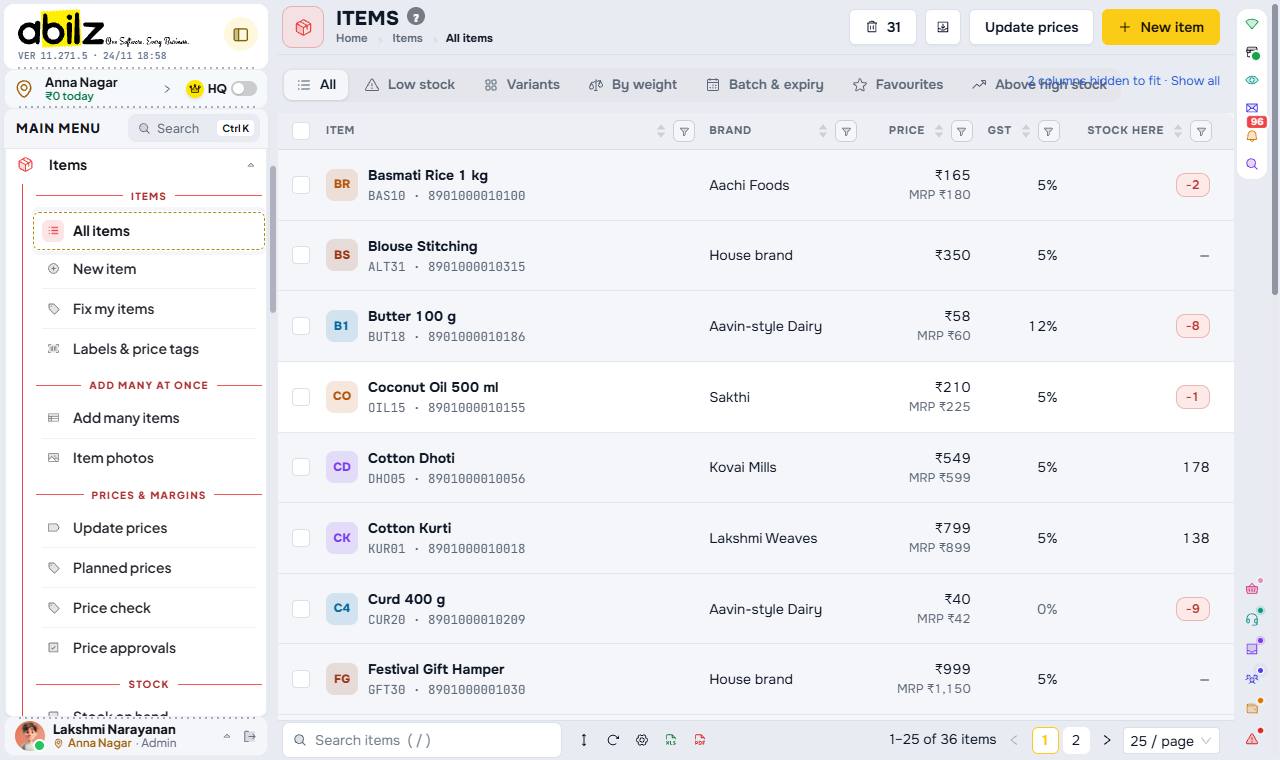
The list
- Each item shows its photo. An item without a photo shows its first letters in a soft circle, in the colour of its category, so items of one category are easy to spot. Add photos in Items › Add many at once › Item photos or on the item itself.
- Under the name you see the SKU and barcode. Unpublished means it is not in your app or online store.
- The columns: Type, Category, Brand, Price (with the MRP below when the price is lower), GST and Stock here. Stock at or under the item's minimum is red. Services, combos, gift cards and items without stock show a dash.
- In HQ view the stock column is Stock, all locations.
- Search by name, code or barcode, and sort by a column.
Quick tabs
The tabs at the top each have a small grey icon; the open tab shows its icon in colour: All, Low stock, Variants, By weight, Batch & expiry, Favourites and Above high stock.
Change many items at once
On a computer or tablet, tick items, then:
- Change category moves them all to one category.
- Mark as favourite: they show first on the POS and in the app.
- Print labels opens Labels & price tags with those items.
- Publish to app puts them in your customer app and web shop.
- Move to trash: an item that has sales is unpublished instead, so its history stays. Open Trash to Restore an item.
Good to know
- New opens the New item screen, and Update prices opens the price change page.
- Import brings items in from Excel with a check before anything is saved; Excel downloads the list.
- The columns you choose are saved for you only.
- On a phone there are no page numbers: more items load as you scroll, and the letters A–Z on the right jump to the first item with that letter.
Was this helpful?
Something wrong in this guide?
Still stuck?Press ? in your portal, then Raise a ticket. It carries the page you are on.
Contact AbilZ