

Open Items › Labels & price tags.
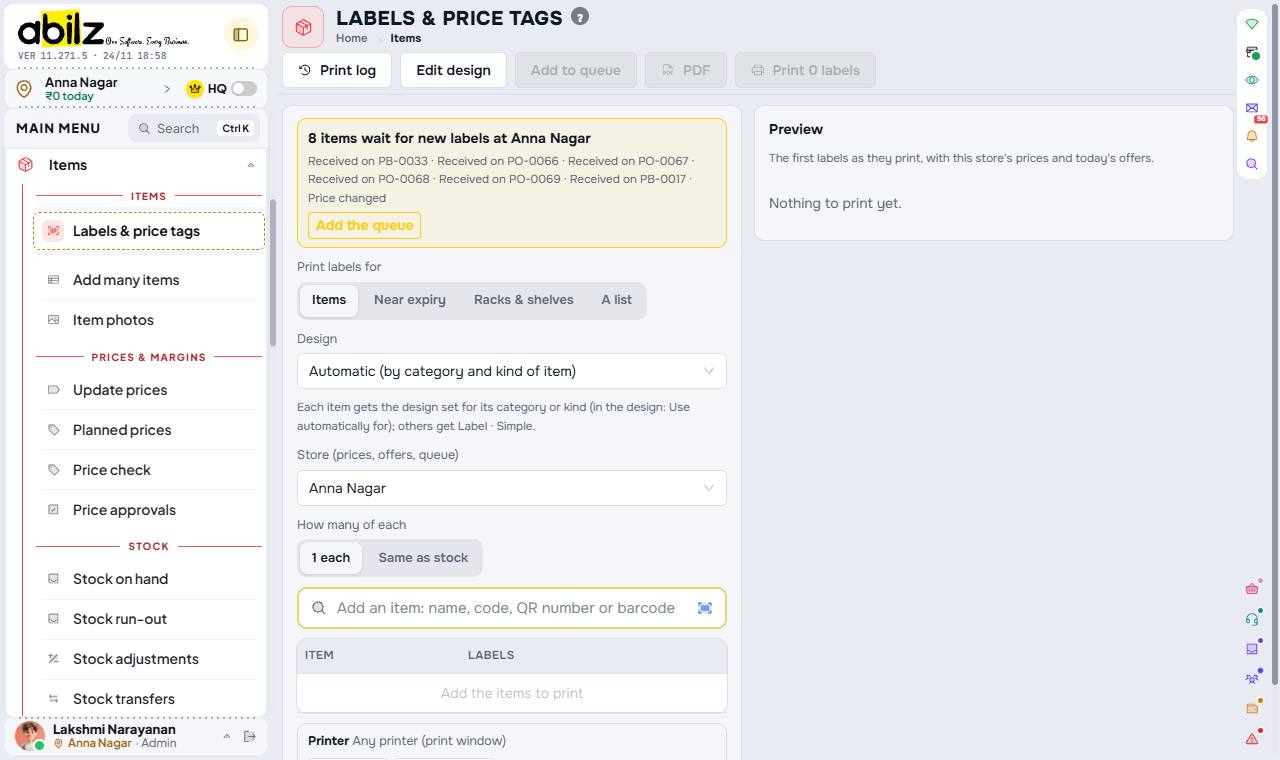
- Open Items › Labels & price tags. If you have no new designs yet, a box offers Label designs for your business (for example, a grocery gets Grocery pack, Weighed item, Clearance sticker, Pre-packed food, Shelf label and Price tag). Press Add these designs.
- Add items (type a name, code or barcode), set how many of each, and press Print.
- The first time, press Test label and Barcode test (see Checks for label printers).
Was this helpful?
Something wrong in this guide?
Still stuck?Press ? in your portal, then Raise a ticket. It carries the page you are on.
Contact AbilZ