

The page shows the items of the location chosen in the menu (the items switched on there, as on the counter), each with its stock there.
Items › Add many at once › Item photos.
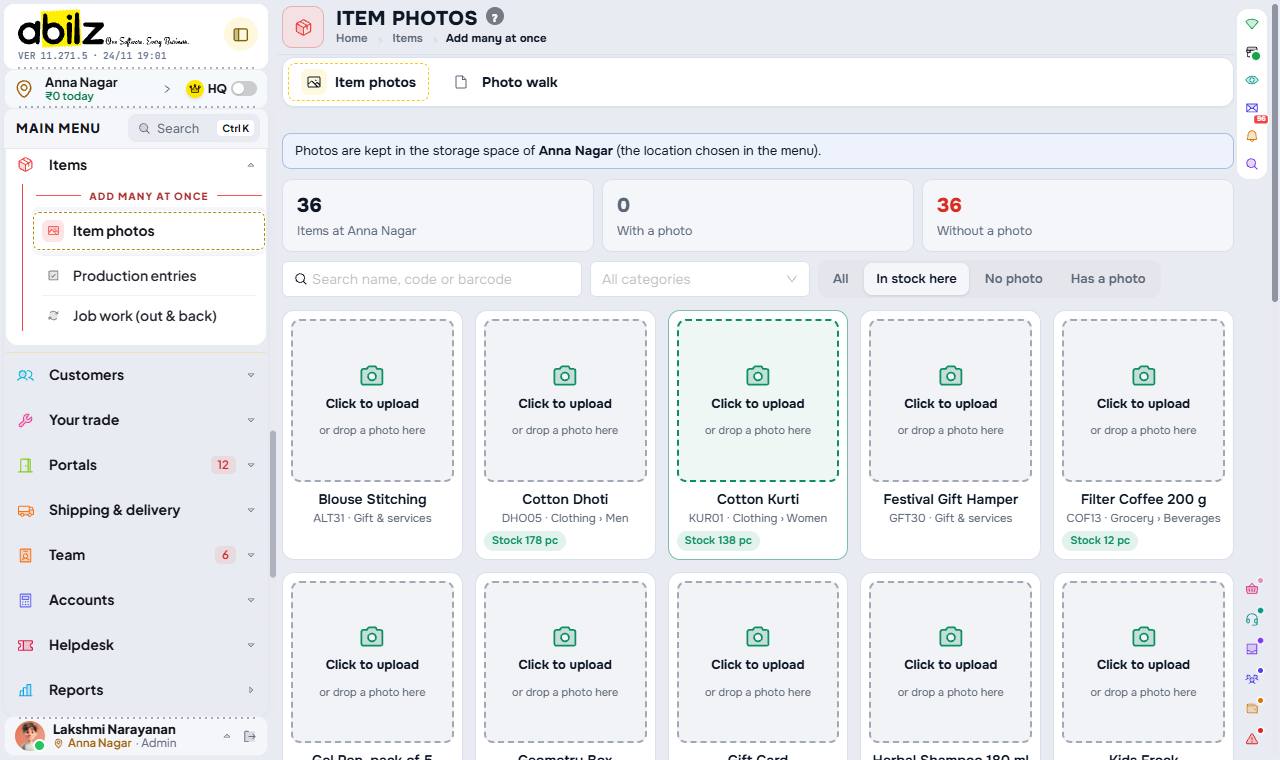
- The page shows the items of the location chosen in the menu (the items switched on there, as on the counter), each with its stock there. It opens on In stock here; All shows every item of that location, including ones with no stock.
- Every item shows as a card. A card without a photo says Click to upload.
- Click the card and choose one or more pictures, or drag pictures from your computer onto the card. They are saved straight away.
- A card with a photo: click it again to add another photo (up to 12 an item).
- The small photos under the main one: click one to make it the main photo (the star). × removes a photo (it asks first).
- Search by name, code or barcode, pick a category, or show only No photo to work through the items still missing one.
- The blue line at the top says which location's storage space the photos go to (the location chosen in the menu).
- The counts at the top: items, items with a photo, items without one.
- The main photo shows on the item list (Items › All items). An item without a photo shows its initials in its category's colour on the item list.
- Big photos are made smaller (1200 px wide, WebP) before saving. To crop or turn a photo, open the item and use its Images.
Was this helpful?
Something wrong in this guide?
Still stuck?Press ? in your portal, then Raise a ticket. It carries the page you are on.
Contact AbilZ