

Items with no barcode get a box: Make barcodes gives each item and variant a proper barcode (EAN-13) and saves it on the item.
- Print labels for: Items, Near expiry, Racks & shelves, A list, or Online orders (when you came from the orders page).
- Design: pick one, or Automatic (see Automatic design).
- Store: its prices, offers, label queue and language for item names.
- How many of each: 1 each, Same as stock, or Same as received (from a purchase). Change any number by hand.
- Variant items: a number for each size / colour.
- Batch items: pick the batch; its number and expiry print.
- Weighed items: type the weights, e.g.
0.250, 0.5, 1.2. One label each, with the weight, its price and the scale barcode. - Serial-number items: pick the serial numbers, or All in stock. One label each.
- Packed on (when the design has dates): best before = packed date + the item's shelf life, unless the batch has its own expiry.
- Start at label (sheets): where to start on a used sheet. AbilZ remembers where the last print stopped on this computer.
- Look at the Preview and Check before printing (every label is checked: text too small to read, missing or wrong barcodes).
- Print, or PDF for a file to send to a print shop or print from a phone.
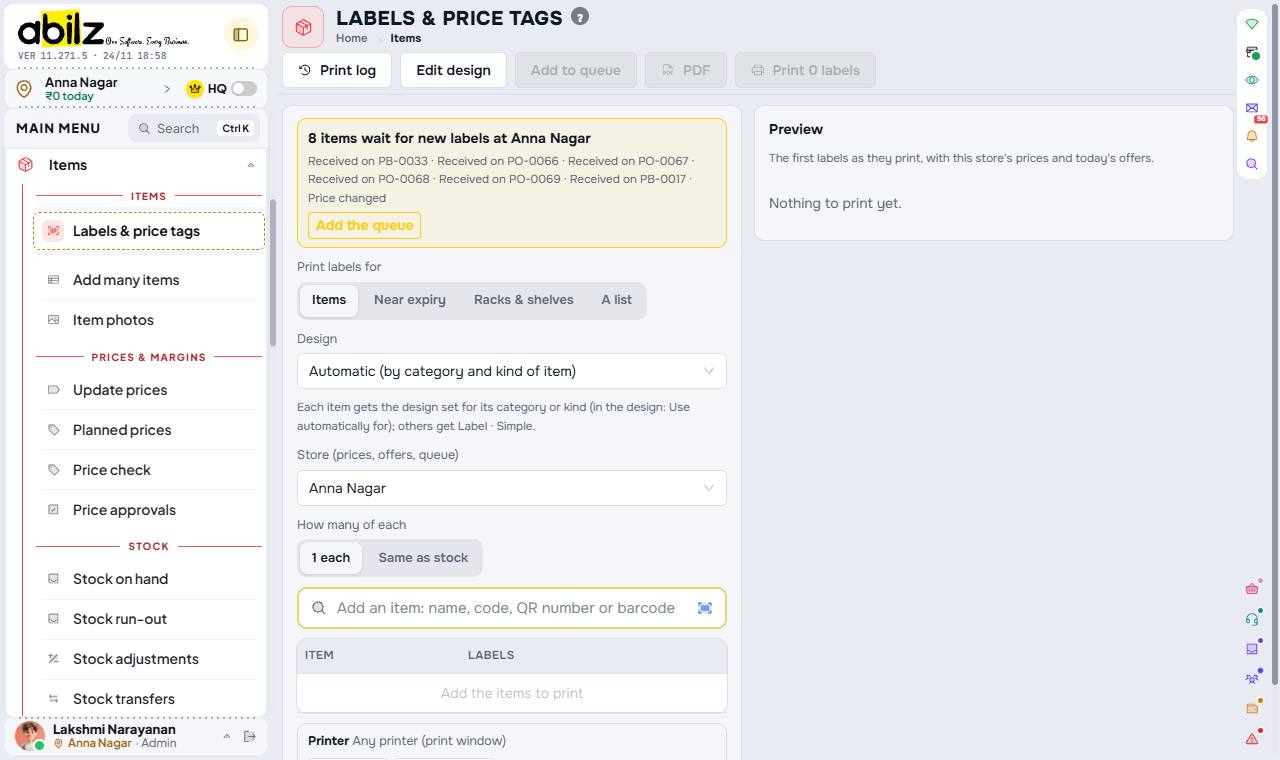
Items with no barcode get a box: Make barcodes gives each item and variant a proper barcode (EAN-13) and saves it on the item.
Was this helpful?
Something wrong in this guide?
Still stuck?Press ? in your portal, then Raise a ticket. It carries the page you are on.
Contact AbilZ