

See every item's stock at the location you are working in, and bring in stock where it is low.
Items › Stock › Stock on hand.
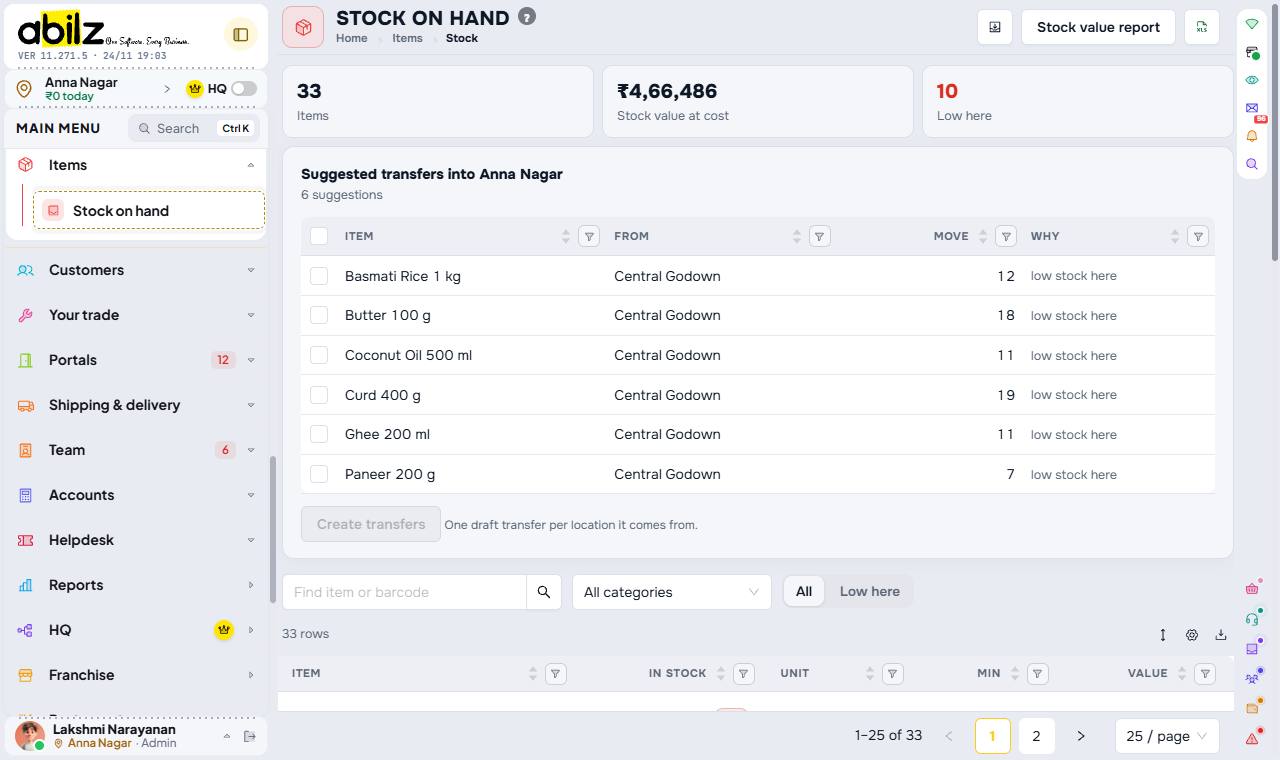
- It shows only the location you are working in now (top of the menu). To see another location, switch to it.
- One line per item with In stock, the Unit, this location's Min level and the Value. Stock at or under the minimum is red.
- Low here shows only the items that are low at this location.
- Find item or barcode searches; pick a category to see only that one.
- Suggested transfers into this location lists stock to bring in from a location or warehouse that has plenty. Tick the lines and press Create transfers: AbilZ makes one draft transfer per location it comes from, for you to check and send.
- Stock value report opens the value of stock.
- On an item, Stock & history shows that item at this location only: its stock (and each variant), every movement in and out here, and the changes made to the item.
Tip To see every location side by side, switch to HQ view (the owner and people with HQ access): this page then shows a column for each location, and the suggested transfers between them.
Was this helpful?
Something wrong in this guide?
Still stuck?Press ? in your portal, then Raise a ticket. It carries the page you are on.
Contact AbilZ