

Every template shows the same boxes. Only the layout changes.
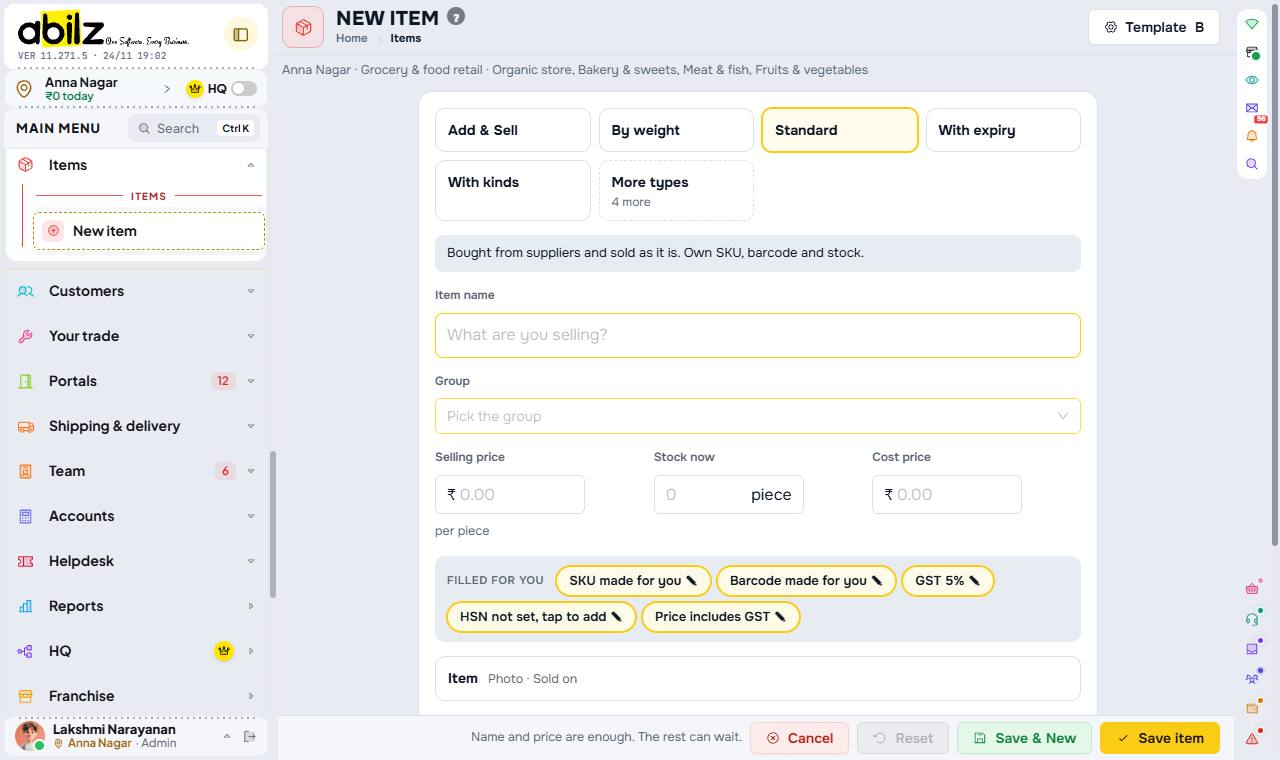
| Template | How it looks | Best for |
|---|---|---|
| A · Form + live preview | The form on the left. On the right the bill line, counter button, shelf label and online card change as you type. | Shops that print shelf labels and care how bills look. |
| B · Quick card (start setting) | One calm card: name and group, then price, stock and cost in big boxes. The rest folds away. | Small shops, first-time users, phones. |
| C · Side sections | A list on the left (Item type, Item, Units, Price, Stock, Kitchen & menu…, Extras) with a tick when done. One section at a time. | Restaurants, pharmacies, items with many details. |
| D · 3 steps | 1 What is it → 2 Price & stock → 3 Check & extras, with a summary before saving. | New users and staff training. |
| E · Add many | A grid: one item per row; the columns follow the business. Paste from Excel (Name, Price, Cost, MRP, Stock). | Opening a new shop, long price lists. |
Choose it in Settings › New Item Templates: all five on one page, Use here or Try it to look first. Each location has its own. HQ can set one for every location and lock it (HQ › HQ locks › New item).
Was this helpful?
Something wrong in this guide?
Still stuck?Press ? in your portal, then Raise a ticket. It carries the page you are on.
Contact AbilZ